

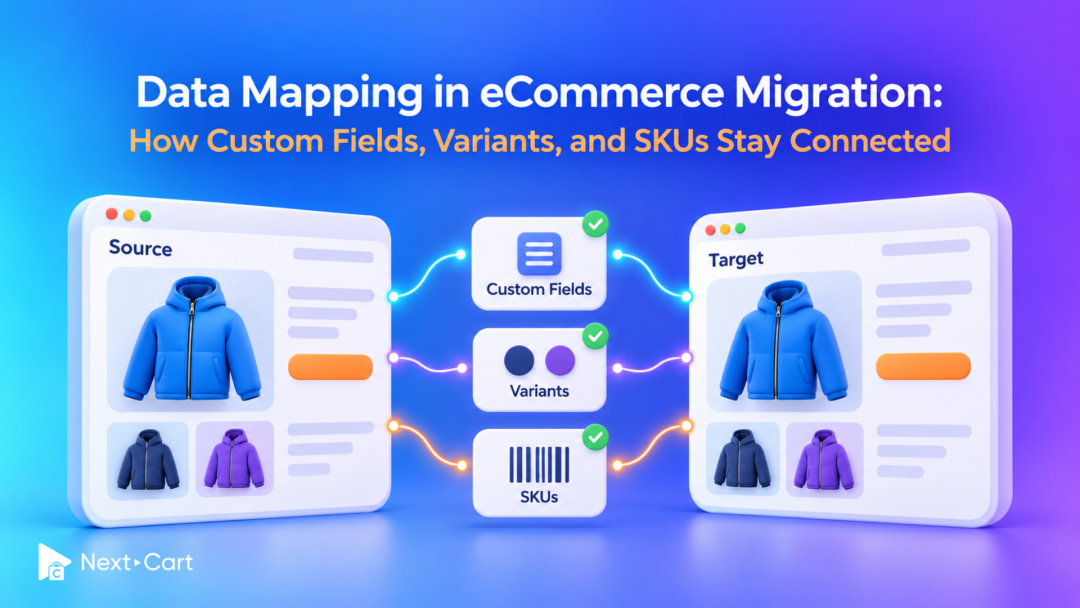
Data mapping in eCommerce migration defines where source data belongs in your new platform, how its meaning is preserved, and which records must stay linked. Done well, it keeps a variant attached to the right product, a SKU tied to the correct sellable item, and an order connected to the right customer.
For store owners, that translates into practical confidence: shoppers can select the size they want, your warehouse receives the right item code, and customer service can understand an old order. A catalog can look complete while one of these connections is wrong. That is why mapping deserves attention before the Full Migration.
What does data mapping actually connect?
Every platform has a schema: the structure it uses to organize products, customers, orders, and their fields. Two stores may display the same product page while storing the information differently underneath. Mapping connects those structures according to the intended result.
Three terms make the process easier to follow:
Field mapping: choosing the destination for a value, such as a supplier reference or customer tax identifier.
Relationship mapping: preserving connections between records, such as a product and its variants or a customer and their orders.
Data transformation: changing a value according to an agreed rule, such as converting a weight from grams to kilograms.
These decisions belong together in a migration plan, but they do different jobs. Moving “500” into a weight field does not make it 0.5 kilograms. Likewise, copying a product ID into an order does not establish a valid relationship if the destination assigns different IDs.
Follow one product through the migration
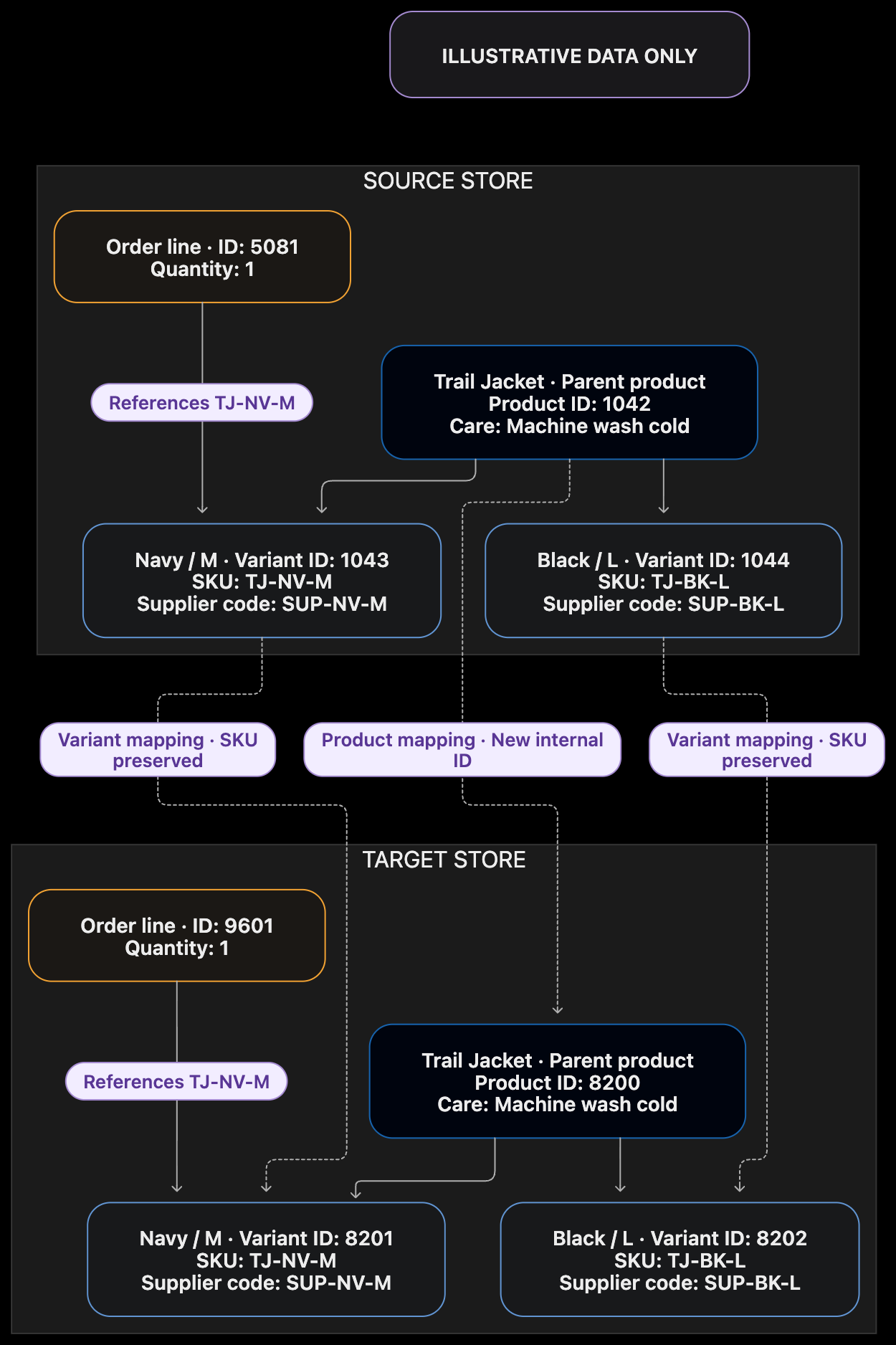
Imagine an outdoor store selling a Trail Jacket in two colors and three sizes. The navy, medium jacket has the SKU TJ-NV-M, its own stock quantity, and a barcode. The product also carries a care-instructions field, while each variant has a separate supplier code.
The migration must preserve which information belongs to the whole jacket and which belongs to one combination. Moving a variant-specific supplier code to the parent product could leave every size pointing to the same supplier item.
Here is an illustrative mapping plan. The labels describe the intended result, not a guarantee that these fields are available on every migration path.
|
Source information |
Intended target result |
Validation check |
|---|---|---|
|
Trail Jacket parent |
One product with its own title and description |
All migrated variants belong to this product. |
|
Navy / Medium; SKU TJ-NV-M |
One matching sellable variant |
Options, SKU, barcode, price, and stock match. |
|
Product care instructions |
Compatible product-level text field |
Value is stored and displayed where required. |
|
Variant supplier code 00127 |
Compatible variant-level identifier field |
Leading zeros survive; the code belongs to the correct variant. |
|
Outerwear + Winter Essentials |
Agreed category or collection memberships |
The product appears in both intended destinations. |
|
Order line for TJ-NV-M |
Historical line details and supported target variant link |
Purchased quantity and price remain accurate; the link resolves correctly. |
For a WooCommerce to Shopify migration, start with the supported data for that exact route. WooCommerce documents variations with their own price, stock, and image settings; Shopify’s product variant model also connects a sellable combination to product and inventory information. Similar storefront behavior still requires careful field and relationship checks.
How do variants and SKUs stay connected?
A variant represents a sellable combination. A SKU is a business identifier associated with an item. An internal ID identifies a record inside a particular system. Treating these as interchangeable creates avoidable matching errors.
Keep the parent and each sellable combination distinct
For the Trail Jacket, “Navy / Medium” must remain attached to the right parent product, with the correct price, stock, image, and barcode. A successful check follows the selected combination through the storefront and into the order. Counting six imported variants alone cannot show that their attributes are correct.
Also distinguish variants from personalization fields. An engraving message or delivery note may describe a purchase without representing a separately stocked item. Converting every option into a variant can change the catalog structure and create combinations the store never sold.
Check whether your SKUs are reliable matching keys
SKUs can help match records when they are populated, unique within the agreed scope, and stable. They are less reliable when a parent and its children share one SKU, two source stores reuse codes, or old products have blank values.
-
Find missing and duplicate SKUs at both product and variant level.
-
Preserve meaningful formatting, including leading zeros, punctuation, and letter case.
-
Agree how source records should match items already present in the target.
-
Document exceptions instead of automatically renaming codes used by inventory or fulfillment systems.
Where a SKU is not a safe key, the migration needs another supported matching method or an agreed custom rule. A source-to-target ID cross-reference can retain the relationship even when the destination generates new record IDs.
Important: Preserving a SKU does not automatically reconnect an ERP, warehouse system, or marketplace feed. Check which identifier each integration uses and test the connection separately.
Where should custom fields go?
Start with the field’s purpose, then choose a destination. A care instruction is readable text. A supplier code is an identifier. A customer tax number may support a business workflow. Putting all three into a description field can preserve the characters while making the data harder to use.
For each custom field, confirm four things:
-
Ownership: does it belong to a product, variant, customer, order, or order line?
-
Type: should the target store it as text, a number, a date, a true/false value, or a reference?
-
Meaning: are units, allowed values, empty values, and formatting interpreted consistently?
-
Usage: which theme, app, filter, or integration needs to read it?
For example, store a supplier code such as 00127 as an identifier rather than assuming it is a quantity. Otherwise, a numeric conversion may remove the zeros. If a source field contains several values, establish whether the destination accepts a list or needs a different supported structure.
A field can also migrate successfully without appearing on the storefront. Storage, display, filtering, and app behavior require separate checks. Our guide to metadata, custom fields, and extensions explains these distinctions, while the article on structuring custom fields and account workflows explores their relevance to wholesale stores.
Before committing to a field design, share one ordinary record and one difficult example with Next-Cart. Showing the source value alongside the result you need is far more useful than a request to “move all custom fields.”
Categories, customers, and orders need mapping too
Categories: preserve placement and intended navigation
A jacket may belong to both Outerwear and Winter Essentials. Decide how those memberships and any parent-child category structure should appear in the target. Check the product’s placement as well as the existence of each category. If the destination organizes collections differently, an explicit rule is more useful than matching category names alone.
Customers: protect identity and business context
A customer’s email, billing address, tax identifier, and account classification serve different purposes. Agree the matching policy before combining records. A shared email address across several stores does not, by itself, authorize merging their business accounts.
For wholesale customers, a migrated group label or tax field also needs validation against the target’s account and pricing setup. Storing the value does not automatically recreate the workflow that used it.
Orders: retain the meaning of the original transaction
An order connects a customer to purchased items, quantities, prices, taxes, discounts, and shipping details. Its historical values should reflect the original transaction rather than be silently recalculated from today’s catalog.
Plan for guest orders, deleted products, and discontinued variants. Where a live product relationship cannot be recreated, define how supported historical line-item details will be retained. Test the order as a customer service colleague would: can you identify what was bought and understand the total?
How can you validate mapping before going live?
Use the Demo Migration to inspect representative records, then repeat the relevant checks after the Full Migration and any approved follow-up run. If the demo sample does not include a critical edge case, arrange additional validation before treating that requirement as proven.
Build a small test set that deliberately includes difficult records:
-
A product with several variants, different images, and variant-specific custom fields.
-
A missing or duplicate SKU and an identifier containing leading zeros.
-
A product assigned to multiple categories and a customer with business fields.
-
A discounted order, a guest order, and an order containing a discontinued item.
For each example, record the source value, expected target result, actual result, and any discrepancy. Compare three layers: record counts, field values, and relationships. Explain count differences caused by approved filtering, merging, or restructuring; do not assume equal totals prove correctness.
[IMAGE PLACEHOLDER 2: Annotated source/target validation screenshot. Use a staging or demo product with no personal data. Highlight the same navy/medium variant, SKU TJ-NV-M, barcode, stock, and supplier code in both stores. Capture actual interfaces only after the example is configured; do not imply a mockup is a live migration result.]
Suggested caption: Validate the selected variant and its connected values, not only the parent product.
Alt text: Side-by-side source and target variant checks for SKU, stock, barcode, and supplier code.
Finish with behavior checks. Select a variant, review its displayed information, add it to the cart, and verify the resulting item. Review customer order history where applicable and test the integrations that consume migrated identifiers. These checks connect database accuracy to everyday store operations.
Before sign-off: Resolve critical mismatches, retest affected records, and keep the approved mapping rules with your project notes. If rules change later, review their effect on previously migrated data before running the migration again.
When does mapping need Custom Migration?
Custom fields do not automatically mean every project requires custom engineering. The deciding question is whether your required result fits the supported behavior of the selected migration path and applicable Add-ons.
Next-Cart’s Advanced Data Mapping routes supported source fields to compatible destinations. Data Transformation handles supported changes to values. Available fields and operations depend on the active migration, so confirm the exact requirement before selecting an Add-on.
Standard Migration suits supported work you manage yourself. Managed Migration adds Next-Cart-led execution within its supported scope. Neither should be treated as a promise to reproduce any custom app or database behavior.
Custom Migration is appropriate for review when your project needs unsupported extraction, bespoke matching, unusual relationships, or tailored logic. Examples include merging several source catalogs using business-specific rules or moving app-owned data into a different target structure.
Prepare sample records, the intended target result, matching and transformation rules, related systems, and clear acceptance checks. This gives the team a concrete basis for assessing feasibility and defining the work.
Give your new store a clear data foundation
Good mapping preserves the meaning of your catalog and customer history through a change of platform. When product structure, identifiers, custom fields, and transaction relationships are reviewed together, the team has a clearer way to spot problems and approve the result.
Ready to check your store’s data? Request a Demo with Next-Cart and bring representative records for review. For more explanations of the systems behind a migration, explore our eCommerce Technology articles.