
Start Your Squarespace to 3DCart Migration Today!
Move your store from Squarespace to 3DCart with a secure, guided migration tailored to your business.


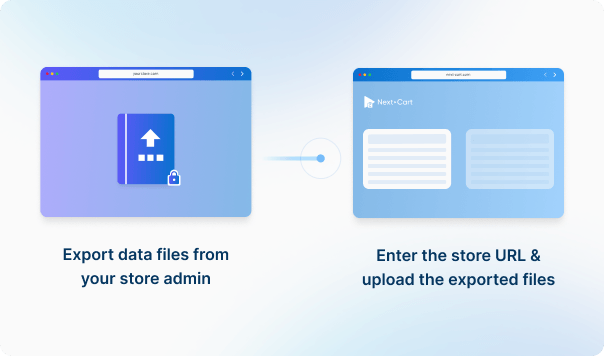
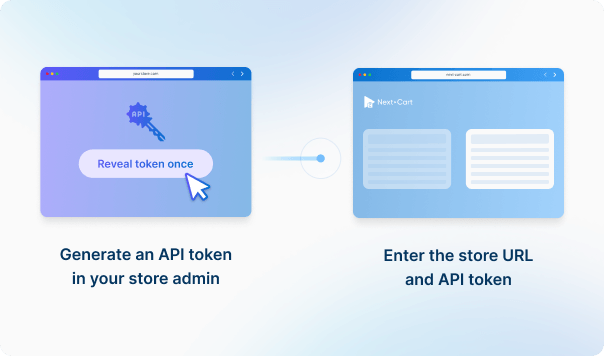
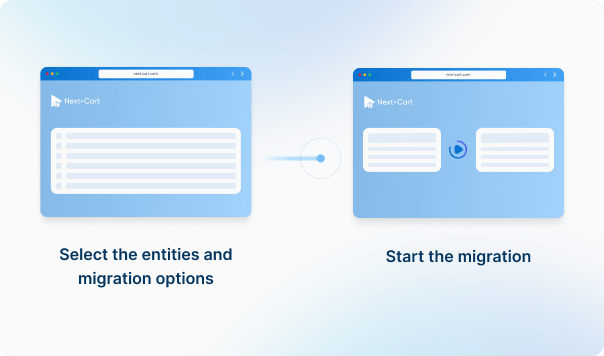
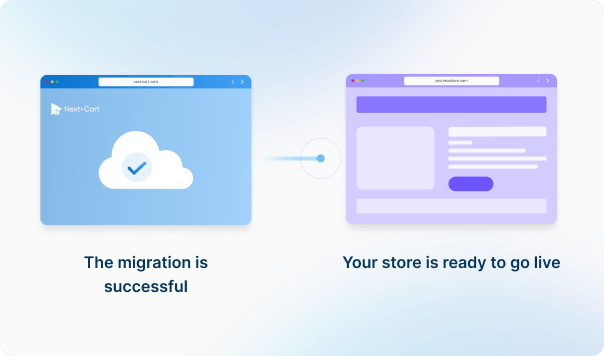


Enter the URL of the Squarespace store you are migrating from and upload the required data files to establish the connection.
To establish the connection, enter the URL for the 3DCart store you are migrating to.




 Squarespace
 3DCartSquarespace3DCart

These four data types are used to estimate the price. Other supported data, including categories, coupons, and reviews, is also migrated at no extra charge.
You can increase your plan’s data limit, upgrade your service, or add custom work while your license is valid.
You only pay the price difference, and your license expiry date stays the same. Custom work is reviewed and quoted separately.
Learn about upgrades (Opens in a new tab)Keep each product's rows together and preserve the original headers and identifiers. Next-Cart carries the last product URL into following rows that have an empty URL, so reordering or separating those rows can associate data with the wrong product. Keep an untouched original export and test multi-variant products first.
Yes, especially if the product export has no hosted image URLs. In that case Next-Cart tries to find images in the original product page, so an unavailable page or changed gallery markup can leave images missing. Check image-rich products in the test before taking the source site offline.
Ordinary choices become product options. Existing variants also create Advanced Options, which link each combination to its price, stock and SKU suffix. A source with only ordinary options does not automatically provide stock for every combination. Check the resulting item codes and quantities, especially if another system uses the original SKUs.
When supplied by the source, download links are saved as product features named Downloadable File. Those references do not set up protected delivery or restore customers' download permissions. Configure and test file delivery in 3DCart separately; confirm any requirements for existing customers' access before migration.
Do not remove it based only on product-import completion. Next-Cart sends the original main and gallery image URLs to 3DCart; this connection does not separately download the files. Check the resulting image URLs and storage to confirm whether 3DCart has independent copies. Rehost any images that still depend on the old domain before retiring that domain or its storage.
Available services depend on your migration path. Standard Migration lets you use the tool yourself with technical support. With Managed Migration, our technicians carry out the agreed migration. Custom Migration covers tailored requirements, with the migration carried out by you or our team as agreed. Data types must be supported by both connections; choosing expert handling does not by itself add unsupported data.
Where a self-service Demo Migration is available for your migration path, you can try it for free before purchasing. It transfers a small sample of supported data so you can check the result. Add-ons and custom work are not included in the self-service demo. For a file-based, custom or technician-assisted evaluation, contact us first to agree the test scope and any applicable cost.
Your data types and quantities determine the Entity Points total and the plan you need. The cost also depends on your chosen service, add-ons, and any custom work. Use the pricing calculator for an estimate; custom work is reviewed and quoted separately.
If you are migrating from a live store, it can normally keep taking orders while Next-Cart copies its data. The migration does not delete or change the source data. Plan the final update and the switch to the new store separately so recent orders and other changes are included. For file-based migrations, changes made after an export require a fresh export; an uploaded file is not a live connection to the store.
Yes. Your license allows repeat runs for the same store and migration path for 12 months from purchase, within your plan’s data limit. Continuing the previous migration can add eligible new records without importing the same mapped records again.
Changing records already migrated is separate: the paid Data Update add-on can update selected fields where your source, target version and those fields are supported. Keep the existing migration links and leave target-data clearing off. It does not automatically update every field or provide continuous synchronization.
Yes. While your license is valid, you can increase your plan’s data limit and upgrade to a higher service where it is available for your migration path. You can move from Standard Migration to Managed Migration or Custom Migration, or from Managed Migration to Custom Migration.
If you already use Custom Migration, you can add custom work after a review and quote. You pay only the additional amount, and your license expiry date stays the same.


Move your store from Squarespace to 3DCart with a secure, guided migration tailored to your business.