

Moving to Shopify is an important step for any merchant. You are not simply opening a new store. You are bringing years of product data, customer relationships, order history, content, and search visibility into a new commerce environment.
The difficult part is rarely creating the Shopify store itself. The real challenge is moving the data behind your business without losing important records or the connections between them.
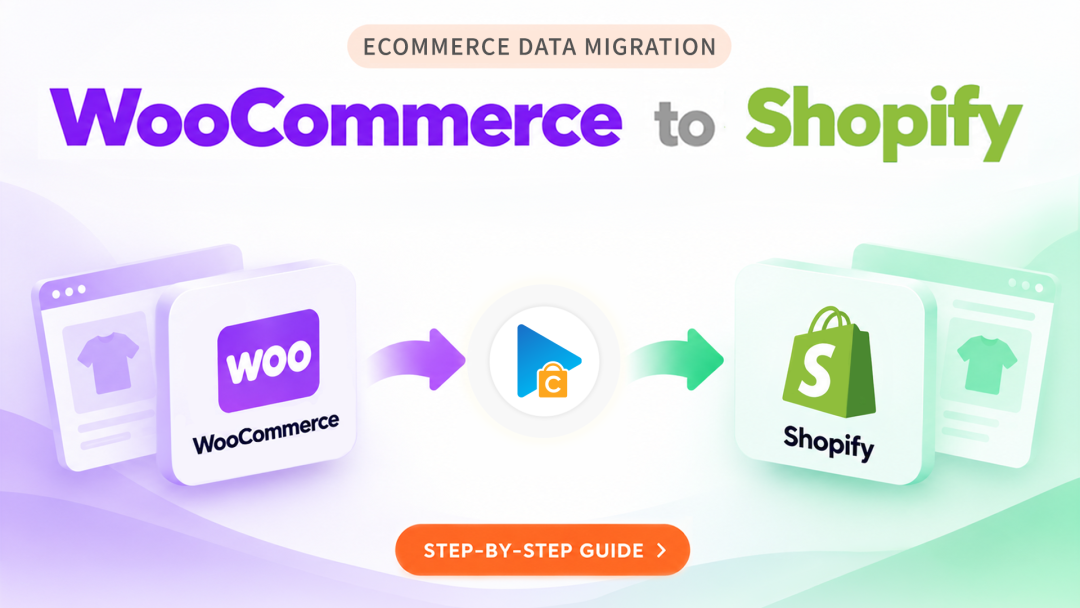
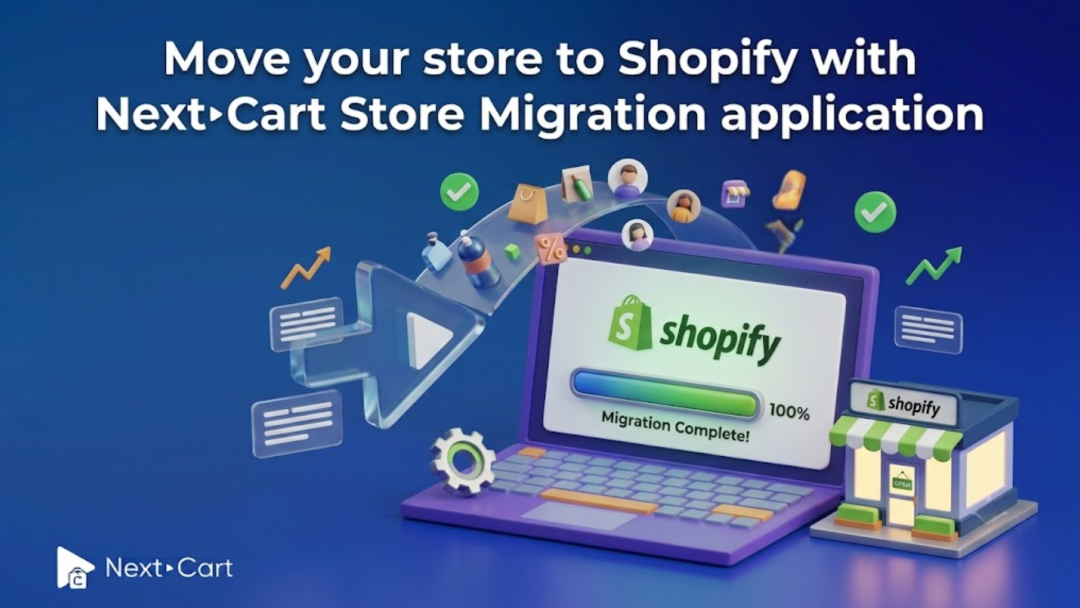
Next-Cart Store Migration is a Shopify app designed to guide merchants through this process. It helps you transfer store data from WooCommerce, PrestaShop, Shopware, and more than 80 other eCommerce platforms to Shopify through one focused workflow.
This guide introduces what the app can migrate, who it is built for, how to prepare your store, and how to complete the migration in three steps.
What is Next-Cart Store Migration for Shopify?
Next-Cart Store Migration gives merchants a direct way to bring existing store data into Shopify. The migration is managed inside the app, so you can connect your current store, choose the data you want to move, configure the available options, and start the transfer from one place.
The app is designed to move more than isolated records. It also preserves supported relationships between products, customers, and orders. This matters because migrated data must remain connected and usable after it reaches Shopify.
For example, a customer record is more valuable when it remains associated with the correct order history. A product is easier to manage when its variants stay connected to the right parent item. Preserving these relationships reduces manual work after migration and helps the Shopify store reflect the structure of your existing business.
Who is the Shopify migration app for?
The app is built for merchants who want to move an existing store to Shopify without rebuilding their data manually. It can support several starting points:
-
You currently run your store on WooCommerce, PrestaShop, Shopware, or another supported eCommerce platform.
-
You need to import store data from CSV, XML, or XLS files.
-
Your data comes from a supported third-party module or extension.
-
Your catalog includes multilingual content, custom fields, metafields, or complex product variants.
-
You want to prepare a Shopify store while keeping your current storefront available to customers.
Next-Cart supports migrations from more than 80 eCommerce platforms, giving merchants a practical route to Shopify across a wide range of store setups.
What data can you migrate to Shopify?
The exact data available depends on the source platform and the migration options it supports. Common store entities include:
-
Products and product-related data
-
Customers and customer information
-
Orders and order histories
-
Collections and categories
-
Product reviews
-
Coupons
-
Blog posts and CMS pages
-
SEO data and URLs
-
Other supported store data
Migrating these entities together gives you a more complete starting point in Shopify and reduces the need to recreate essential business records by hand.
Multilingual and custom store data
If your store serves more than one market, you may also need to move localized content. Next-Cart can transfer multilingual data together with supported products, categories, blog posts, and pages.
Custom fields and metafields help accommodate information that does not fit standard Shopify fields. Because every platform structures custom data differently, review these fields before migration and confirm how they appear in Shopify afterward.
Complex products and large variant structures
Products with many option combinations often require closer attention during migration. Next-Cart Store Migration can handle complex catalogs with up to 2,048 variants and three or more options.
Before starting, identify products with unusual combinations of size, color, material, style, or other attributes. These items should be part of your post-migration review so you can confirm that options and variants work as expected in Shopify.
How to prepare before moving your store to Shopify
A smoother migration begins with a clear understanding of your current data. Complete these checks before opening the migration workflow:
-
Review your store data. Identify the products, customers, orders, content, and SEO information that must move to Shopify.
-
Remove unnecessary records. Cleaning outdated test products, unused content, or duplicate records can make the transferred dataset easier to review.
-
List custom elements. Note multilingual content, custom fields, third-party modules, and unusual product structures that may need additional validation.
-
Check your Shopify destination. Make sure the destination store is available and ready to receive data.
-
Plan your validation. Decide which products, orders, customers, URLs, and content pages you will check after migration.
This preparation gives you a practical checklist for comparing the source store with the migrated Shopify store.
How to migrate your store to Shopify in three steps
Next-Cart organizes the migration into a simple three-step workflow.
Step 1: Connect your current store and Shopify
Open Next-Cart Store Migration in Shopify and provide the required connection details for your source store. The connection method may vary by platform or file type.
Confirm that both the source and destination connections are working before moving to the configuration stage. A successful connection allows the app to read supported source data and prepare it for Shopify.
Step 2: Select and configure your migration
Choose the entities you want to move, such as products, customers, orders, categories, reviews, pages, blog posts, SEO data, and URLs. Then review the available migration options for your source and target setup.
Pay particular attention to custom fields, multilingual content, product variants, and other platform-specific data. Your configuration should reflect the records and relationships that matter to your business.
Step 3: Run the migration and review the results
Start the migration once the configuration is ready. After the transfer, review the results in Shopify before continuing with your final launch preparations.
Check representative records from every important data type. A focused review helps you identify platform-specific differences early and gives you time to resolve questions before launch.
What to check after the migration
Do not evaluate the migration by looking at the product count alone. Review the quality and relationships of the transferred data as well.
-
Open products with simple and complex variant structures.
-
Confirm that product information, images, options, and variants appear correctly.
-
Check customer records and their associated order histories.
-
Review collections or categories and confirm product assignments.
-
Open migrated blog posts and CMS pages, including multilingual versions where applicable.
-
Review important SEO fields and URLs.
-
Test a selection of custom fields and metafields.
A structured review is especially important for stores with large catalogs, multiple languages, or extensive custom data.
Keep your current store running during migration
Next-Cart does not require you to take your existing online store offline while data is being transferred. Your storefront can remain available so normal business operations can continue during the migration.
This gives you time to prepare and review the Shopify store without turning the data transfer into an unnecessary interruption for customers.
Choose a migration plan for your store size
Choose the plan that matches your migration volume. The Next-Cart Store Migration app provides a dedicated migration path from supported source platforms directly to Shopify.
All prices are in USD. Shopify is the fixed target platform.
Compare plans
|
Plan details |
Demo |
Basic |
Standard |
Advanced |
Unlimited |
|---|---|---|---|---|---|
|
Price |
Free |
$150/month |
$350/month |
$550/month |
$1,000/month |
|
Migrations per day |
Up to 5 |
Unlimited |
Unlimited |
Unlimited |
Unlimited |
|
Products |
Up to 50 |
Up to 10,000 |
Up to 50,000 |
Up to 100,000 |
Unlimited |
|
Customers |
Up to 50 |
Up to 10,000 |
Up to 50,000 |
Up to 100,000 |
Unlimited |
|
Orders |
Up to 50 |
Up to 10,000 |
Up to 50,000 |
Up to 100,000 |
Unlimited |
|
Blog Posts |
Up to 50 |
Up to 10,000 |
Up to 50,000 |
Up to 100,000 |
Unlimited |
|
CMS Pages |
Up to 50 |
Up to 10,000 |
Up to 50,000 |
Up to 100,000 |
Unlimited |
|
Collections (Categories) |
All |
All |
All |
All |
All |
|
Coupons |
All |
All |
All |
All |
All |
|
Reviews |
All |
All |
All |
All |
All |
|
URL Redirects |
Included |
Included |
Included |
Included |
Included |
|
SEO Data |
Included |
Included |
Included |
Included |
Included |
|
Metafields |
Included |
Included |
Included |
Included |
Included |
|
Source Stores |
Unlimited |
Unlimited |
Unlimited |
Unlimited |
Unlimited |
The main differences between plans are migration frequency and migration capacity. Basic, Standard, and Advanced progressively increase the capacity for Products, Customers, Orders, Blog Posts, and CMS Pages, while Unlimited removes those volume limits.
Which plan do you need?
Choose the first plan that accommodates the largest of your Products, Customers, Orders, Blog Posts, or CMS Pages totals. Each capacity-based data type is evaluated independently.
For example, consider a store with 8,000 Products, 6,000 Customers, and 24,000 Orders. Products and Customers fit within Basic, but Orders exceed its 10,000-record capacity. Standard is therefore the minimum plan that covers the complete migration volume.
Need more than the app?
The Shopify Migration App is designed for merchants who want to run a supported migration directly into Shopify.
For projects that require more hands-on migration execution, consider a Managed Migration Service. For requirements involving genuinely non-standard migration logic or a scope beyond the app's supported capabilities, explore a Custom Migration Service.
The app and Next-Cart's web-based Migration Services use different pricing, capacity, and service structures, so they should be evaluated separately.
Get help when you need it
Migration can raise platform-specific questions, particularly when a store contains custom fields, third-party modules, multilingual content, or complex variants. Next-Cart provides 24/7 technical support throughout the migration when assistance is needed.
Start your move to Shopify
Moving to Shopify does not have to mean rebuilding years of business data manually. With Next-Cart Store Migration, you can connect your current store, choose the records that matter, complete the transfer, and review the results through one guided process.
Start with a Demo migration to understand the workflow and see how your data moves. When you are ready, select the plan that fits your store and continue your Shopify migration with confidence.