Next-Cart

QuickBooks to Zen Cart Migration

Migrate products, customers, and other supported store data from QuickBooks to Zen Cart securely and accurately while preserving data relationships throughout the transfer.
QuickBooksQuickBooks to Zen Cart MigrationZen Cart
Start Free Demo
No downtime, <br />No coding required
No downtime,
No coding required
Keep your store active during migration. No technical skills needed.
Free Demo Available
Free Demo Available
Preview a sample of your WooCommerce data on Shopify before running the Full Migration.
1-year License with <br />Recent Data Migration
1-year License with
Recent Data Migration
Keep your migration project available for 12 months and sync new or changed data with Recent Data Migration when needed.
24/7 <br />Technician Support
24/7
Technician Support
Get expert help with connections, configuration, migration issues, and validation whenever you need it.

Step-by-Step Guide to QuickBooks to Zen Cart Migration

Connect your QuickBooks files
1
Connect your QuickBooks files

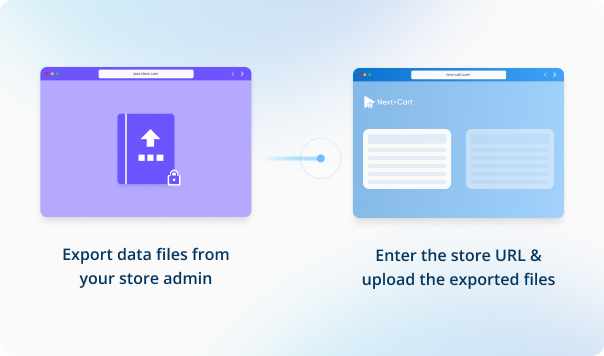
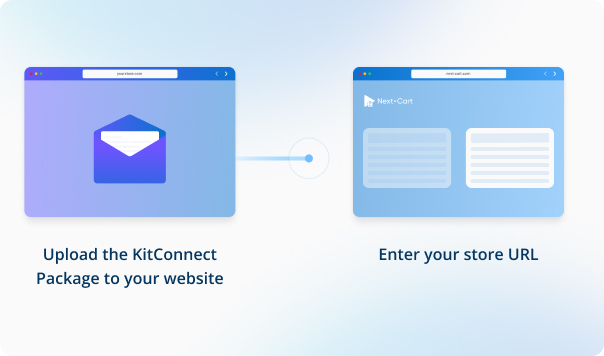
Enter your QuickBooks Commerce store URL and upload the required data files to establish the connection.

Step-by-Step Migration Guide
icon

Data You Can Migrate

Products
Product Categories
Customers
All relationships (categories, variants, images, etc.) preserved

Customize your setup with additional options Customize your setup with

Recent Data Migration
Clear Target Store Data
Strip HTML Tags from Category and Product Names
Transfer Embedded Images to Target Store
Create 301 Redirects for SEO URLs
Preserve Product IDs & Category IDs
Preserve Order IDs and Customer IDs
Compatibility Overview
QuickBooksQuickBooks
Zen CartZen Cart
Version Rangetooltip
Simple Start, Essentials, Plus, Advanced
1.x – 2.2.0 (and all previous 2.x releases)
Main Editionstooltip
QuickBooks Admin Site
Zen Cart Online Store
Language & Localization
-
Multilingual, Multicurrency, RTL, Localized URLs
Product Types: Simple Product, Variable Product
Product Information: Name, SKU
Product Pricing : Regular Price, Sale Price
Product Images: Main image, Gallery Images, Images in Description
Product Inventory : Manage Inventory, Stock Status
External Links / Relationships : Categories
Product Attributes & Custom Fields : Values, Attribute Types
Product SEO / Structured Data: Meta Title, Meta Description
Category Information: Name
Customer Information : First Name, Last Name, Email, Phone, Date Created
QuickBooksQuickBooks
Zen CartZen Cart
Product Typestooltip
Simple Product
Simple Product
Simple Product
Variable Producttooltip
Variable Product
Product Variants
Name
Name
Name
SKU
SKU
Model
Regular Price
Regular Price
Price
Sale Price
Sale Price
Special Price
Main image
Main image
Product Image
Gallery Images
Gallery Images
Additional Images
Images in Description
Description
Manage Inventory
Manage Inventory
Track Stock
Stock Status
Stock Status
Stock Status
Categories
Categories
Categories
Values
Values
Values
Attribute Types
Attribute Types
Option Type
Meta Title
Meta Title
Meta Title
Meta Description
Meta Description
Meta Description
Category Information
Name
Name
Name
Customer Information
First Name
First Name
First Name
Last Name
Last Name
Last Name
Email
Email
Email
Phone
Phone
Phone
Date Created
Date Created
Date Created

Estimate your Migration Cost

A clear, step-by-step workflow where our technicians handle everything.

You only review the final result—we take care of the rest.
1. Service
2. Data Volume
Source Platform
QuickBooks
Target Platform
Zen Cart
Products
Customers
Orders
Blog posts
Custom jobs
+$100
ESTIMATED TOTAL ESTIMATED BASE PRICE
$0
Pricing includes AWS architectural fees.
Standard Migration Source → Target
Migration Path
Source Platform ...
Target Platform ...
Data Volume
Total Data Records 0
Entity Points 0
Plan -
Service Standard Migration
0 0

Frequently Asked Questions

Why is only one product image displayed after migration to Zen Cart?

In Zen Cart, when a product has multiple images, the images are typically named according to the following format: [name]_[position].[extension]. For example, for a product with three images named "shirt.jpg", the images would be:

  • "shirt.jpg" (main image)
  • "shirt_1.jpg" (second image)
  • "shirt_2.jpg" (third image)

Our migration tool is designed to upload images to Zen Cart following this naming convention. However, if your Zen Cart website has been customized to allow flexible image naming, the storefront may only display the main image, even though all images were uploaded. This happens because the customized settings on your Zen Cart may not recognize or display the additional images correctly.

If your Zen Cart store has been customized in this way, we can modify the migration tool to work with your setup. Let us know, and we’ll make the necessary adjustments.

icon
icon

Start your QuickBooks to Zen Cart Migration today!

Move your store from QuickBooks to Zen Cart with a secure, guided migration tailored to your business.


Banner