Start Your WooCommerce to BigCommerce Migration Today!
Move your store from WooCommerce to BigCommerce with a secure, guided migration tailored to your business.


Upload the KitConnect package to the website of the WooCommerce store you are migrating from, then enter that store’s URL to establish the connection. This allows the system to securely access that store’s data for migration.
To establish the connection, enter the URL, API path, client ID and access token for the BigCommerce store you are migrating to.



 WooCommerce
 BigCommerceWooCommerceBigCommerce


These four data types are used to estimate the price. Other supported data, including categories, coupons, and reviews, is also migrated at no extra charge.
You can increase your plan’s data limit, upgrade your service, or add custom work while your license is valid.
You only pay the price difference, and your license expiry date stays the same. Custom work is reviewed and quoted separately.
Learn about upgrades (Opens in a new tab)Confirm which destination storefront and category tree should receive each part of your catalog. Next-Cart maps category trees and product channels, but orders follow a separate rule: each uses the first mapped source storefront, with a fallback if that mapping is missing. Check catalog placement and order storefronts separately; selecting a storefront does not automatically place every data type there.
Identify the multilingual plugin before setup and map the source languages to supported destination languages. WooCommerce has separate migration paths for WPML and Polylang; the default single-language path is not a substitute. Whether translations remain linked and editable depends on the destination and its multilingual setup.
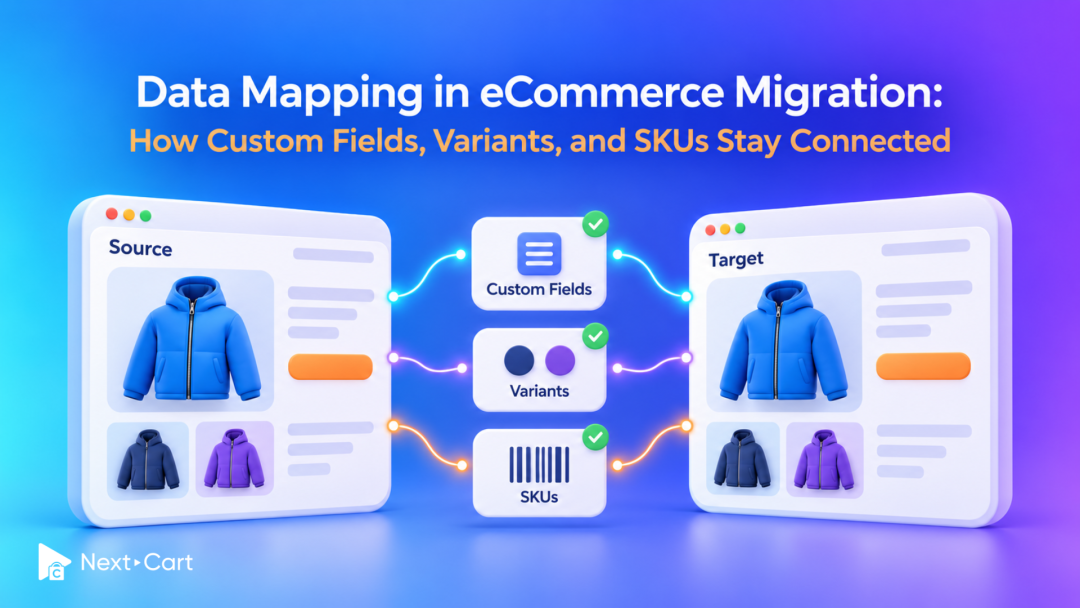
Existing variants become BigCommerce variants with their supplied SKU, price and stock. Ordinary options become modifiers, with supported choice types and price adjustments, rather than separate stock-tracked variants. Check whether each choice needs its own SKU or only changes the purchase. Conditional rules and options supplied by apps may need separate handling.
Next-Cart sends the main image as the product thumbnail, adds other pictures to the gallery, and assigns a supplied variant image separately. Keep source images accessible while BigCommerce processes them. Test the picture shown for each variant, not just the gallery; custom swatches or image-switching behavior are not recreated automatically. Images inside descriptions need the separate copying option where available.
Next-Cart marks the imported product as digital and stores its WooCommerce file URL in a custom field. It does not convert download limits, expiry settings or existing customer permissions into BigCommerce delivery rules. Keep the files accessible and configure and test file delivery and customer access separately.
After migration, configure and test BigCommerce file delivery and customer access. For supported sources, the migration can create digital product records and keep file links in custom fields, but those references do not set up delivery files or restore download permissions. Keep the original files accessible until the delivery setup is verified.
When the source provides related-product references, Next-Cart resolves them to migrated product IDs and writes BigCommerce related-product links. It also updates previously imported products for reverse references. Include the linked products and check the results; this does not by itself recreate a separate up-sell system, cross-sell app or storefront recommendation layout.
No. BigCommerce assigns a new internal order ID. Next-Cart keeps the original number as an external reference and adds it to the order message, so staff can trace the old order without confusing that reference with the new BigCommerce ID.
Yes. The default WooCommerce connection checks whether HPOS and its synchronization option are enabled, then reads orders from the corresponding storage. Confirm those settings and compare completed, refunded and draft-order counts in the test migration; checkout drafts and trash are excluded.
No. Imported orders can retain historical shipping labels and tax and shipping amounts, but those values do not configure the new store's operational checkout settings. Review BigCommerce shipping methods, tax settings and other checkout configuration separately before accepting new orders.
Yes. The default WooCommerce, WPML and Polylang migration paths read product SEO titles, descriptions and focus keywords from Yoast SEO and Rank Math. Recognized title placeholders are converted to text, and some other placeholders are removed; nonempty Rank Math source values take precedence for the corresponding product fields. The destination determines how those values are stored and displayed, so check representative products after migration.
Available services depend on your migration path. Standard Migration lets you use the tool yourself with technical support. With Managed Migration, our technicians carry out the agreed migration. Custom Migration covers tailored requirements, with the migration carried out by you or our team as agreed. Data types must be supported by both connections; choosing expert handling does not by itself add unsupported data.
Where a self-service Demo Migration is available for your migration path, you can try it for free before purchasing. It transfers a small sample of supported data so you can check the result. Add-ons and custom work are not included in the self-service demo. For a file-based, custom or technician-assisted evaluation, contact us first to agree the test scope and any applicable cost.
Your data types and quantities determine the Entity Points total and the plan you need. The cost also depends on your chosen service, add-ons, and any custom work. Use the pricing calculator for an estimate; custom work is reviewed and quoted separately.
If you are migrating from a live store, it can normally keep taking orders while Next-Cart copies its data. The migration does not delete or change the source data. Plan the final update and the switch to the new store separately so recent orders and other changes are included. For file-based migrations, changes made after an export require a fresh export; an uploaded file is not a live connection to the store.
Yes. Your license allows repeat runs for the same store and migration path for 12 months from purchase, within your plan’s data limit. Continuing the previous migration can add eligible new records without importing the same mapped records again.
Changing records already migrated is separate: the paid Data Update add-on can update selected fields where your source, target version and those fields are supported. Keep the existing migration links and leave target-data clearing off. It does not automatically update every field or provide continuous synchronization.
Yes. While your license is valid, you can increase your plan’s data limit and upgrade to a higher service where it is available for your migration path. You can move from Standard Migration to Managed Migration or Custom Migration, or from Managed Migration to Custom Migration.
If you already use Custom Migration, you can add custom work after a review and quote. You pay only the additional amount, and your license expiry date stays the same.


Move your store from WooCommerce to BigCommerce with a secure, guided migration tailored to your business.