
Start Your Shopify to WooCommerce Migration Today!
Move your store from Shopify to WooCommerce with a secure, guided migration tailored to your business.


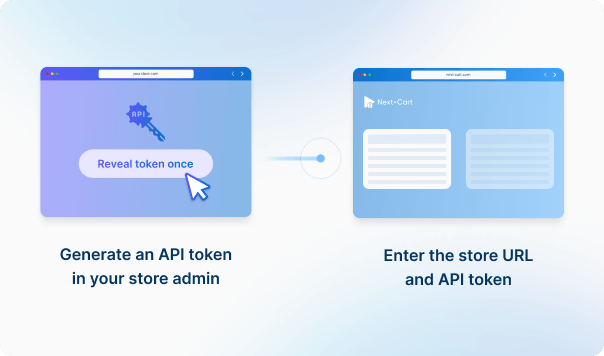
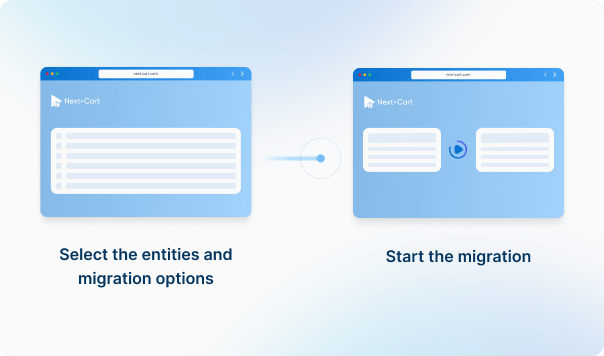
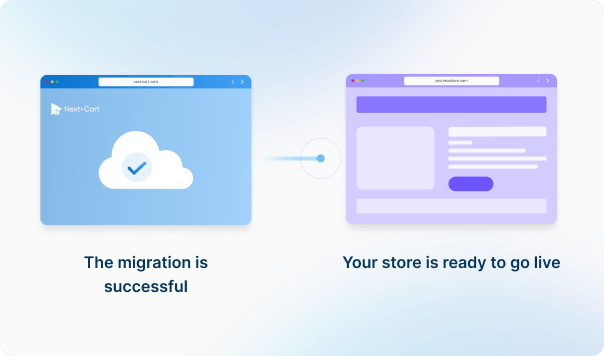


Generate an API access token from your Shopify admin, then enter your store URL and API credentials to connect. This enables secure data transfer into your Shopify store.
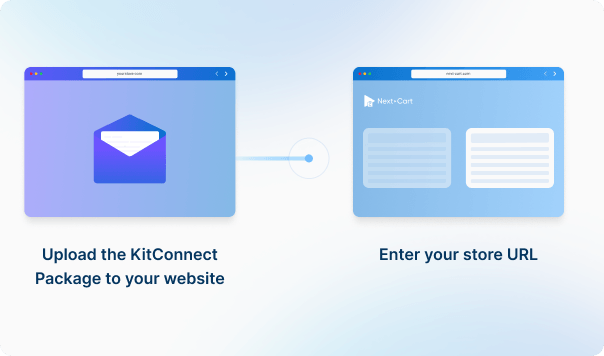
Upload the KitConnect package to your WooCommerce website, then enter your store URL to establish the connection. This allows the system to securely access your store data for migration.




 Shopify
 WooCommerceShopifyWooCommerce

These four data types are used to estimate the price. Other supported data, including categories, coupons, and reviews, is also migrated at no extra charge.
You can increase your plan’s data limit, upgrade your service, or add custom work while your license is valid.
You only pay the price difference, and your license expiry date stays the same. Custom work is reviewed and quoted separately.
Learn about upgrades (Opens in a new tab)Collections provide the category records. Next-Cart also reads collection relationships from the main menu to infer a category hierarchy, so a nested menu and a collection are not treated as the same thing. Check collection links in the main menu before migration; the destination's category and navigation setup still needs its own review.
The default WooCommerce import uses the product_brand taxonomy for incoming manufacturer and brand data. It finds or creates the corresponding brand and assigns it to the product. Check the resulting product brands; this does not automatically populate a different brand taxonomy used by a third-party plugin.
Reviews are not included in Next-Cart’s default Shopify source connection. Migrating the products does not automatically export reviews held by a review app. Keep an export from that app with the links to the relevant products, and discuss the destination format before migration. Review content and the app’s storefront features are separate requirements.
Existing source variants become WooCommerce variations without going through option-combination generation. With options-only data, the default connection creates individual variations when option-specific prices, stock, images or SKUs require them. Otherwise, or when there are more than 1,000 combinations, it uses one variation that accepts any listed option value. This fallback uses the main product’s price and does not give each combination its own tracked stock.
WPML and Polylang connections use a different generation path: up to 3,000 combinations, with none generated above that count. These are Next-Cart processing rules, not WooCommerce platform limits. Confirm the required choices, prices and stock allocation before moving an options-only catalog.
Next-Cart copies the supplied product images into WooCommerce and assigns one supplied image to each variation. It does not recreate a separate multi-image gallery for every variation. Keep the original files accessible and check both the product gallery and the image shown when a variation is selected. Images inside descriptions need the separate copying option, where supported.
Keep the original files and their URLs available, and confirm where they will be hosted after the move. A product's download entries are not the files themselves or the permissions from past purchases. Check the FAQ for your source-to-WooCommerce pair to see how file links, download settings and access rights are handled. Test an actual customer download before removing the old file hosting.
In the default WooCommerce connection, supplied related-product links are combined with up-sell links and saved as WooCommerce up-sells. Cross-sells are mapped separately. The result is therefore not a separate reproduction of the source's related-products system. Include the referenced products and check the up-sell and cross-sell selections after migration.
Orders use the source-to-target customer mapping to find the destination customer account. When that mapping is missing, the import uses customer ID 0, so the order is not linked to a registered customer. Include the relevant customers and preserve their migration mappings. Check account order histories separately from the billing and shipping details stored on the orders.
Check that the required accounts were imported: an existing email address or username at the destination can cause an account to be skipped. Password compatibility depends on the source and versions. Some supported routes require a Customer Password Plugin, while compatible WordPress-based routes may use the stored password hashes directly. Test sign-in and password resets, and check account order history separately. Imported orders or billing details alone do not prove that customer access works.
Imported orders receive new internal WordPress or HPOS IDs. Next-Cart also stores the original order number, or the source order ID when no separate number is supplied, in order-number metadata. That saved number is different from the internal ID. Check how your order-number plugin, emails and integrations display or use it rather than assuming the old database ID was retained.
Yes, when the source provides recognized SEO values. The default import writes product SEO titles, descriptions and focus keywords into the metadata used by both Yoast SEO and Rank Math, including the WPML and Polylang product paths. Configure the SEO plugin you intend to use and check the resulting storefront metadata; importing fields does not install the plugin, recreate its template rules or guarantee search rankings.
In the default WooCommerce update connection, quantity applies to the already-mapped main product, not every variation. Selecting quantity alone does not refresh all stock-status values; the current update also requires the stock-management field to be selected for those status writes.
Data Update is a paid add-on, separate from importing new products. Keep the previous migration links and do not clear the target. It does not rebuild variation stock, product combinations or the image gallery. Confirm the selected fields and check both the quantity and whether the product is available to buy after the update. A compatible source connection and the selected update fields are required.
Available services depend on your migration path. Standard Migration lets you use the tool yourself with technical support. With Managed Migration, our technicians carry out the agreed migration. Custom Migration covers tailored requirements, with the migration carried out by you or our team as agreed. Data types must be supported by both connections; choosing expert handling does not by itself add unsupported data.
Where a self-service Demo Migration is available for your migration path, you can try it for free before purchasing. It transfers a small sample of supported data so you can check the result. Add-ons and custom work are not included in the self-service demo. For a file-based, custom or technician-assisted evaluation, contact us first to agree the test scope and any applicable cost.
Your data types and quantities determine the Entity Points total and the plan you need. The cost also depends on your chosen service, add-ons, and any custom work. Use the pricing calculator for an estimate; custom work is reviewed and quoted separately.
If you are migrating from a live store, it can normally keep taking orders while Next-Cart copies its data. The migration does not delete or change the source data. Plan the final update and the switch to the new store separately so recent orders and other changes are included. For file-based migrations, changes made after an export require a fresh export; an uploaded file is not a live connection to the store.
Yes. Your license allows repeat runs for the same store and migration path for 12 months from purchase, within your plan’s data limit. Continuing the previous migration can add eligible new records without importing the same mapped records again.
Changing records already migrated is separate: the paid Data Update add-on can update selected fields where your source, target version and those fields are supported. Keep the existing migration links and leave target-data clearing off. It does not automatically update every field or provide continuous synchronization.
Yes. While your license is valid, you can increase your plan’s data limit and upgrade to a higher service where it is available for your migration path. You can move from Standard Migration to Managed Migration or Custom Migration, or from Managed Migration to Custom Migration.
If you already use Custom Migration, you can add custom work after a review and quote. You pay only the additional amount, and your license expiry date stays the same.


Move your store from Shopify to WooCommerce with a secure, guided migration tailored to your business.