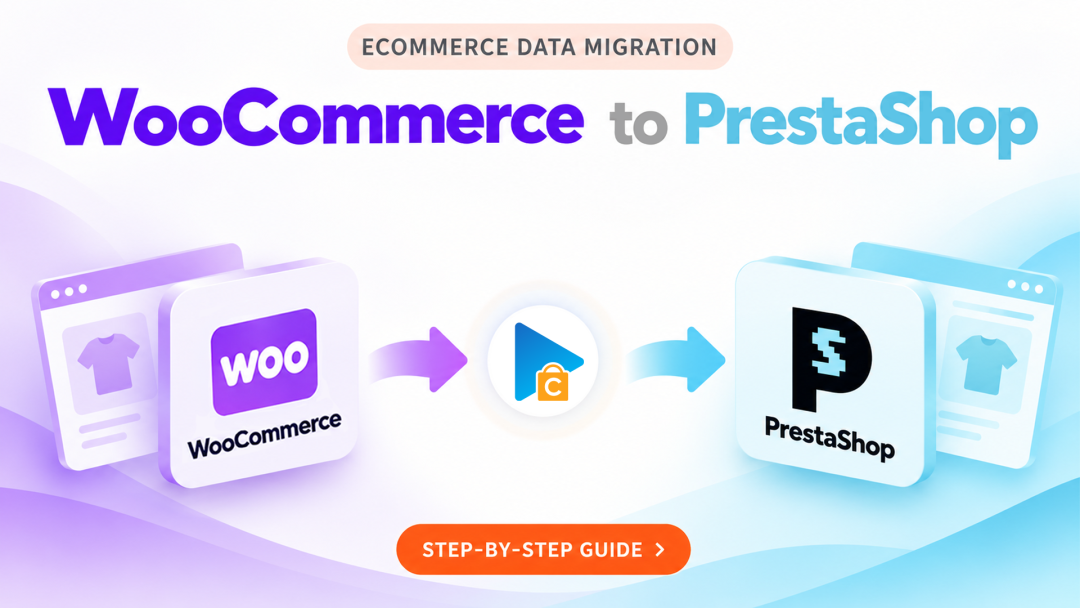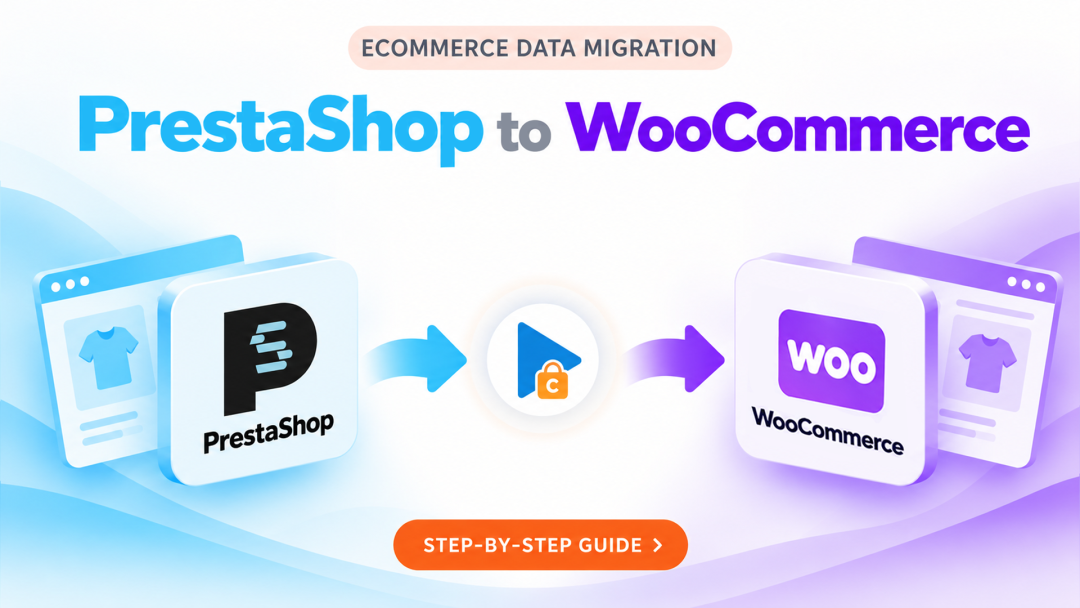
PrestaShop to WooCommerce Migration with Next-Cart
Looking to move your online store from PrestaShop to WooCommerce? Switching platforms can open up new possibilities for managing your store, especially if you're looking for the flexibility of the WordPress ecosystem.
However, changing platforms also means bringing your existing products, customers, orders, and other store information into a different environment. Rather than rebuilding your store data manually, Next-Cart helps you transfer selected information from PrestaShop to WooCommerce through a structured migration process.
In this tutorial, you'll learn how to complete your PrestaShop to WooCommerce migration in 3 simple steps.
What Makes PrestaShop to WooCommerce Migration Different?
PrestaShop and WooCommerce have different approaches to managing an online store. PrestaShop provides a dedicated eCommerce environment, while WooCommerce extends WordPress with online selling capabilities.
This difference can affect how store information is organized and managed after migration. Some important considerations include:
- Product Structure: Review how product attributes, combinations, and variations are represented in both platforms.
- Category Organization: Check how your existing product categories and their hierarchy will be transferred.
- Customer and Order Records: Consider how historical customer and transaction information will be represented in WooCommerce.
- Store Content: Plan how existing pages, blog content, and other supported information will fit into your WordPress environment.
Understanding these differences before migration helps you prepare your destination store and identify any additional configuration requirements.
How to Migrate from PrestaShop to WooCommerce in 3 Steps
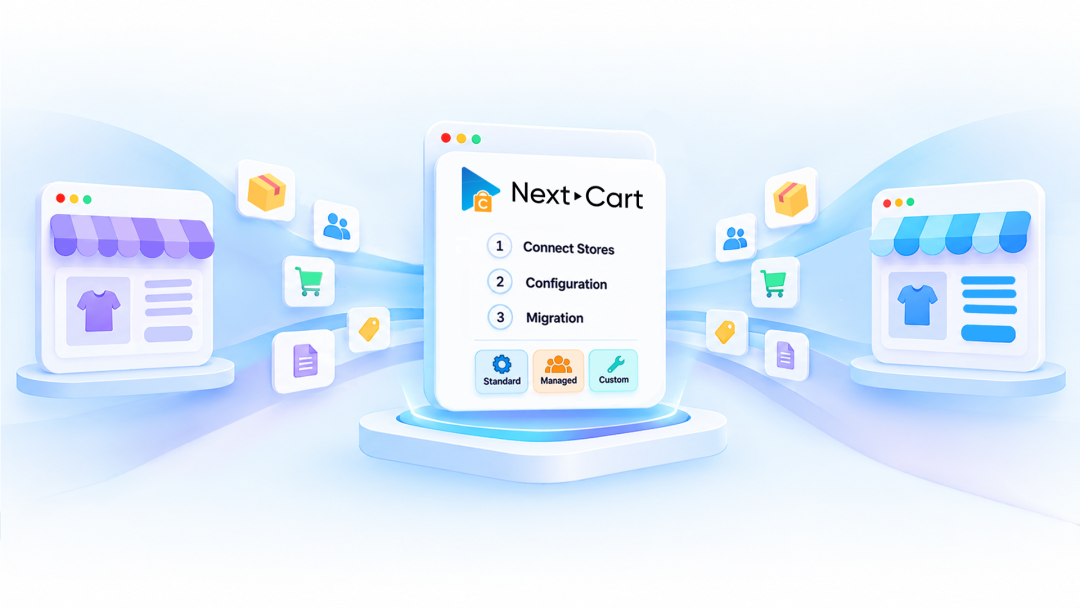
With Next-Cart, you can complete the migration through three main stages, from connecting your existing store to transferring your selected data.
Step 1: Connect Stores
- Select PrestaShop as your source store.
- Select WooCommerce as your target store.
- Enter the required information to establish connections with both platforms.
Step 2: Configuration
- Choose the data entities you want to migrate.
- Review the available migration settings and data mapping.
- Configure additional options if your store has specific data requirements.
- Check your selected entities and configuration before proceeding.
Step 3: Migration
- Start the migration process.
- Monitor the progress as your selected data is transferred.
- Review the migrated information in your WooCommerce store.
- Submit a helpdesk ticket if you need technical assistance.
Prepare Your WooCommerce Store for the Transition
Unlike PrestaShop, WooCommerce operates within the WordPress ecosystem. This means your new store setup may involve more than configuring products and checkout settings.
Before launching your migrated store, consider preparing the following:
- WordPress Installation: Make sure your WordPress website is properly installed and ready for WooCommerce.
- WooCommerce Setup: Configure the essential store settings, including currency, location, and selling preferences.
- Theme and Extensions: Choose a suitable theme and review the plugins needed for your store's functionality.
- Permalinks and URLs: Plan your URL structure and consider how existing product and category URLs will be handled.
- Store Configuration: Review shipping, tax, payment, and other operational settings before opening your new store.
Preparing these elements in advance gives your migrated data a suitable environment and helps reduce additional work after the transfer.
Go Beyond Standard Migration with Data Customization
Every store has its own data organization. If your PrestaShop store contains specific fields, customized product information, or unique data relationships, standard migration settings may not cover every requirement.
Next-Cart provides additional customization options to handle more advanced scenarios:
- Data Filter: Select specific records to include or exclude from the migration.
- Data Transformation: Adjust existing data values to meet your WooCommerce store's requirements.
- Advanced Data Mapping: Customize the relationships between source and target data fields.
- Advanced Database Mapping: Handle specialized database-level mapping requirements.
These options offer greater flexibility when your migration involves data structures or requirements beyond the default configuration. Availability depends on your selected migration package.
Validate Your Data Before Launching Your WooCommerce Store
Once the migration is complete, checking the transferred information is an important step before making your new store available to customers.
We recommend reviewing several key areas:
- Product Catalog: Check product details, prices, images, attributes, and variations.
- Category Navigation: Make sure products appear under the appropriate categories.
- Customer Accounts: Verify customer information and review any applicable account or password migration requirements.
- Order History: Inspect order details, associated customers, and available order information.
- Storefront Experience: Test important pages, product navigation, and the purchasing process.
For an initial assessment, we recommend running a Demo Migration before purchasing a full migration package. You can inspect sample results in WooCommerce and review your configuration before transferring the remaining data.
Move Your Store from PrestaShop to WooCommerce
Moving to WooCommerce gives you the opportunity to build your online store within the broader WordPress ecosystem. With the right preparation, you can bring your existing business data into a new environment without starting your store from zero.
Whether you're planning a straightforward platform switch or have more specific data requirements, Next-Cart provides migration options to help you manage the transition.
Ready to make the move?
👉 Watch the complete tutorial to learn how to migrate from PrestaShop to WooCommerce in 3 easy steps with Next-Cart.