
Start Your Adobe Business Catalyst to eShop Migration Today!
Move your store from Adobe Business Catalyst to eShop with a secure, guided migration tailored to your business.





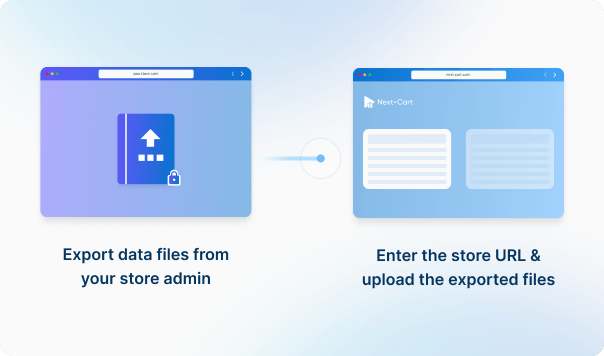
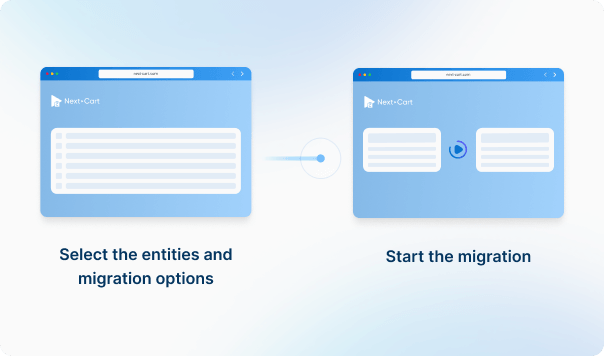
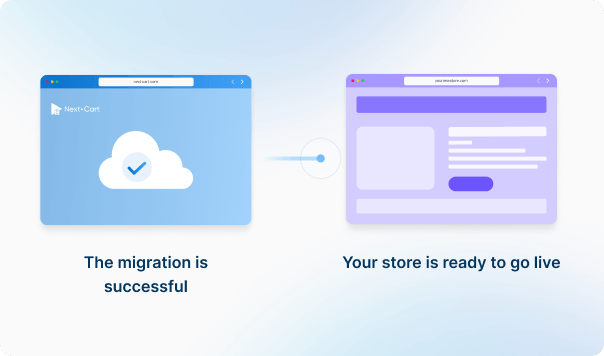


Enter the URL of the Adobe Business Catalyst site you are migrating from and upload the required data files to establish the connection.
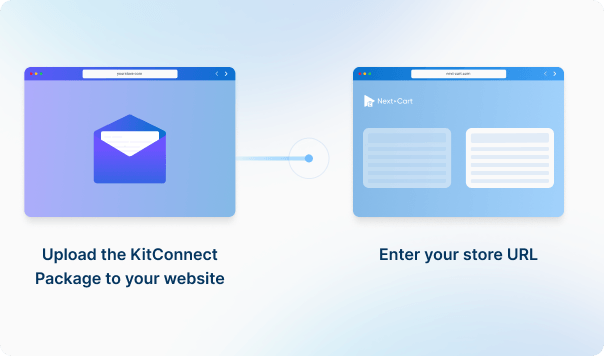
Enter the URL of the eShop store you are migrating to. Then download the KitConnect package, unzip it, and upload it to that store’s website.



 Adobe Business CatalysteShopAdobe Business CatalysteShop


These four data types are used to estimate the price. Other supported data, including categories, coupons, and reviews, is also migrated at no extra charge.
You can increase your plan’s data limit, upgrade your service, or add custom work while your license is valid.
You only pay the price difference, and your license expiry date stays the same. At Checkout, you can buy predefined Custom Jobs or describe your requirements to receive a quote before paying.
Learn about upgrades (Opens in a new tab)Next-Cart reconstructs category paths from the Catalogue column in product.csv and links products to the categories along those paths. Keep the original path structure. Categories are matched by name in this connection, so repeated category names in different branches need checking before migration.
Next-Cart reads selectable options from the original Attributes column in your product export. Keep that column in its original export format: changing its separators or rewriting the text can break the link between an option and its choices. The destination must support the resulting choices; option prices and special purchase rules should be checked separately.
When variants are converted into product options, Next-Cart adds together the stock of the variants that share each option value. For example, M–Red with 5 units and M–Black with 10 units give Size M a quantity of 15. If the variants do not manage stock, the option values use the main product’s quantity instead.
This preserves quantities for individual choices, not a separate stock record for every original combination. Do not add the totals for Size and Color together: they describe the same inventory. Combination-specific SKUs and prices are not generally retained by this conversion. This describes the eShop 2 and 3 connections, not every eShop version or extension.
Yes. For supported products, Next-Cart copies the supplied main image and gallery to eShop. Keep the original image links accessible and allow files to be written to the destination until you have checked the gallery. Images from extensions must be included in the source data. Images inside descriptions need the separate copying option, where available; check them before removing the old hosting.
Available services depend on your migration path. Standard Migration lets you use the tool yourself with technical support. With Managed Migration, our technicians carry out the agreed migration. Custom Migration covers tailored requirements, with the migration carried out by you or our team as agreed. Data types must be supported by both connections; choosing expert handling does not by itself add unsupported data.
Where a self-service Demo Migration is available for your migration path, you can try it for free before purchasing. It transfers a small sample of supported data so you can check the result. Add-ons and custom work are not included in the self-service demo. For a file-based, custom or technician-assisted evaluation, contact us first to agree the test scope and any applicable cost.
Your data types and quantities determine the Entity Points total and the plan you need. The cost also depends on your chosen service, add-ons, and any custom work. Use the pricing calculator for an estimate; custom work is reviewed and quoted separately.
If you are migrating from a live store, it can normally keep taking orders while Next-Cart copies its data. The migration does not delete or change the source data. Plan the final update and the switch to the new store separately so recent orders and other changes are included. For file-based migrations, changes made after an export require a fresh export; an uploaded file is not a live connection to the store.
Yes. Your license allows repeat runs for the same store and migration path for 12 months from purchase, within your plan’s data limit. Continuing the previous migration can add eligible new records without importing the same mapped records again.
Changing records already migrated is separate: the paid Data Update add-on can update selected fields where your source, target version and those fields are supported. Keep the existing migration links and leave target-data clearing off. It does not automatically update every field or provide continuous synchronization.
Yes. While your license is valid, you can increase your plan’s data limit and upgrade to a higher service where it is available for your migration path. You can move from Standard Migration to Managed Migration or Custom Migration, or from Managed Migration to Custom Migration.
If you already use Custom Migration, you can add custom work after a review and quote. You pay only the additional amount, and your license expiry date stays the same.


Move your store from Adobe Business Catalyst to eShop with a secure, guided migration tailored to your business.























































































Not sure which platform your store uses? Send us your store URL or tell us what you need to migrate.
Our team will help identify your platform and recommend a solution, including a custom-built migration tool if needed.
Talk to an Expert

Not sure which platform your store uses? Send us your store URL or tell us what you need to migrate.
Our team will help identify your platform and recommend a solution, including a custom-built migration tool if needed.
Talk to an Expert
