
Start Your Quickbutik to Square Migration Today!
Move your store from Quickbutik to Square with a secure, guided migration tailored to your business.


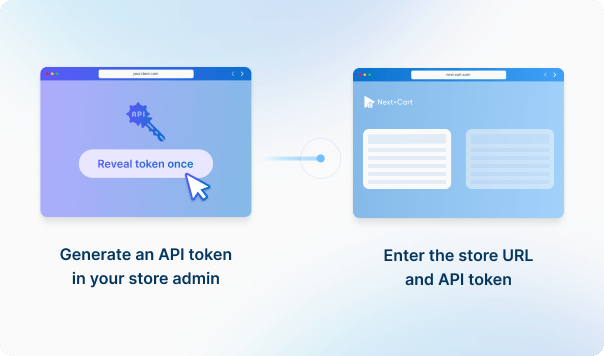
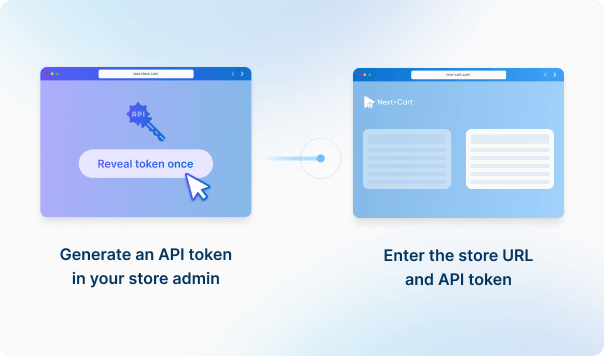


To establish the connection, enter the URL and API credentials for the Quickbutik store you are migrating from.
To establish the connection, enter the URL and API credentials for the Square store you are migrating to.




 Quickbutik
 SquareQuickbutikSquare


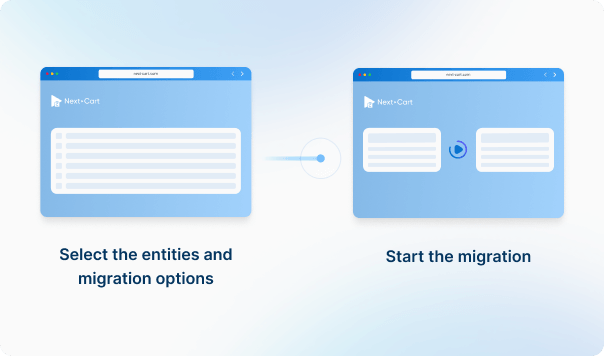
These four data types are used to estimate the price. Other supported data, including categories, coupons, and reviews, is also migrated at no extra charge.
You can increase your plan’s data limit, upgrade your service, or add custom work while your license is valid.
You only pay the price difference, and your license expiry date stays the same. At Checkout, you can buy predefined Custom Jobs or describe your requirements to receive a quote before paying.
Learn about upgrades (Opens in a new tab)Existing variants become Square item variations with their option values. If only separate choices are supplied, Next-Cart first creates combinations, with a processing limit of 3,000. Stock is assigned to the mapped location, or the configured default location. Check each variation’s SKU, price and location-level quantity, and confirm that every created combination should be available for sale.
Make sure the original images can be downloaded. Next-Cart uploads product and variant images to Square and marks the main product image as primary. The upload supports JPEG, GIF and PNG filename extensions; other formats or protected links need checking. Test both the gallery and the images assigned to individual variants.
Stock is written using the configured location mapping when the source provides location-level quantities. A source location without a destination mapping is skipped, so map each location you want to keep and check the resulting stock by location. The order location is selected separately and should be reviewed too.
The built-in source setup disables standalone customer migration. It can still read buyer details while converting an order, which is different from transferring a complete customer account list. Plan customer access separately and verify the buyer details on test orders.
For imported non-canceled orders, Next-Cart creates an external payment record marked as a migration. It is not a replay of the customer's original card payment, but it does add payment records to Square, so review reporting and automation effects in a test migration. Completed and canceled order states are applied after the order is created.
The option writes the source record ID into Square's order reference field, while Square still creates its own order ID. That source ID may differ from the displayed order number in your old store. Compare both values in a test order before relying on the reference for customer service.
Available services depend on your migration path. Standard Migration lets you use the tool yourself with technical support. With Managed Migration, our technicians carry out the agreed migration. Custom Migration covers tailored requirements, with the migration carried out by you or our team as agreed. Data types must be supported by both connections; choosing expert handling does not by itself add unsupported data.
Where a self-service Demo Migration is available for your migration path, you can try it for free before purchasing. It transfers a small sample of supported data so you can check the result. Add-ons and custom work are not included in the self-service demo. For a file-based, custom or technician-assisted evaluation, contact us first to agree the test scope and any applicable cost.
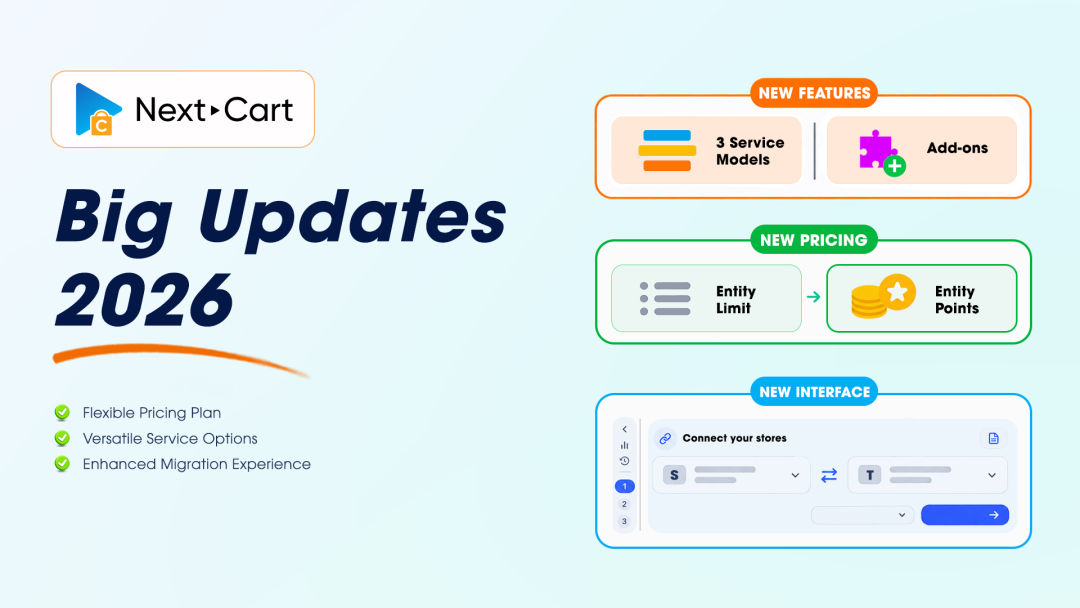
Your data types and quantities determine the Entity Points total and the plan you need. The cost also depends on your chosen service, add-ons, and any custom work. Use the pricing calculator for an estimate; custom work is reviewed and quoted separately.
If you are migrating from a live store, it can normally keep taking orders while Next-Cart copies its data. The migration does not delete or change the source data. Plan the final update and the switch to the new store separately so recent orders and other changes are included. For file-based migrations, changes made after an export require a fresh export; an uploaded file is not a live connection to the store.
Yes. Your license allows repeat runs for the same store and migration path for 12 months from purchase, within your plan’s data limit. Continuing the previous migration can add eligible new records without importing the same mapped records again.
Changing records already migrated is separate: the paid Data Update add-on can update selected fields where your source, target version and those fields are supported. Keep the existing migration links and leave target-data clearing off. It does not automatically update every field or provide continuous synchronization.
Yes. While your license is valid, you can increase your plan’s data limit and upgrade to a higher service where it is available for your migration path. You can move from Standard Migration to Managed Migration or Custom Migration, or from Managed Migration to Custom Migration.
If you already use Custom Migration, you can add custom work after a review and quote. You pay only the additional amount, and your license expiry date stays the same.


Move your store from Quickbutik to Square with a secure, guided migration tailored to your business.