Migrate products, customers, orders, blog posts, and other supported store data from Ubercart to 3DCart securely and accurately while preserving data relationships throughout the transfer.
Keep your store active during migration. No technical skills needed.
Free Demo Available
Preview a sample of your WooCommerce data on Shopify before running the Full Migration.
1-year License with Recent Data Migration
Keep your migration project available for 12 months and sync new or changed data with Recent Data Migration when needed.
24/7 Technician Support
Get expert help with connections, configuration, migration issues, and validation whenever you need it.
Step-by-Step Guide to Ubercart to 3DCart Migration
1
Connect your Ubercart store
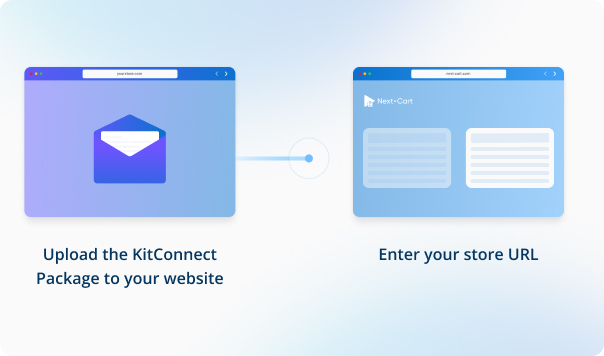
Enter your Ubercart store URL, then download the KitConnect package, unzip it, and upload it to your Ubercart website.
2
Connect your 3DCart store
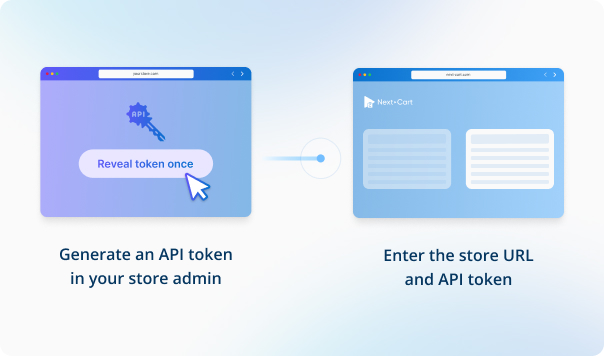
Enter your 3DCart store URL to establish the connection.
3
Configure and start the migration
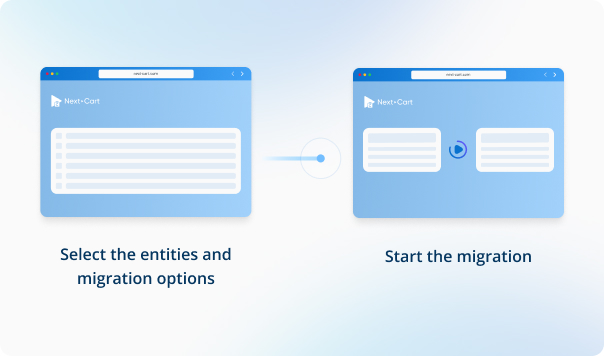
Select the data you want to migrate, configure your migration options, then start the migration to your target store.
4
Review results & post-migration options
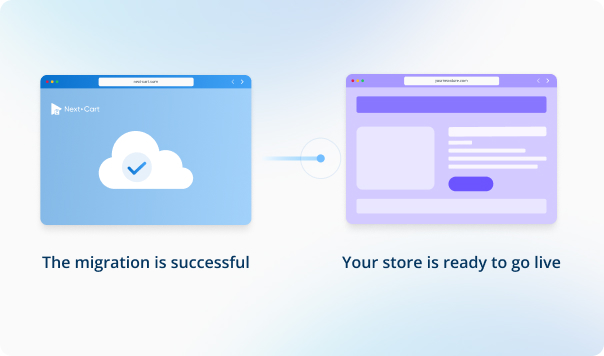
Review your migrated data to make sure everything is in place, then use post-migration options such as Recent Data Migration or Re-Migration if needed.
Data You Can Migrate
Products
Product Categories
Customers
Orders
Coupons
Blog Posts
CMS Page
All relationships (categories, variants, images, etc.) preserved
Customize your setup with
additional options
Recent Data Migration
Clear Target Store Data
Strip HTML Tags from Category and Product Names
Transfer Embedded Images to Target Store
Create 301 Redirects for SEO URLs
Preserve Product IDs & Category IDs
Preserve Order IDs and Customer IDs
Compatibility Overview
Ubercart
3DCart
Version Range
8.x-4.0-alpha5 (and all previous releases) on Drupal version 7/8, 1.x-3.15.1 (and all previous releases) on Backdrop