
Start Your ShopWired to 3DCart Migration Today!
Move your store from ShopWired to 3DCart with a secure, guided migration tailored to your business.





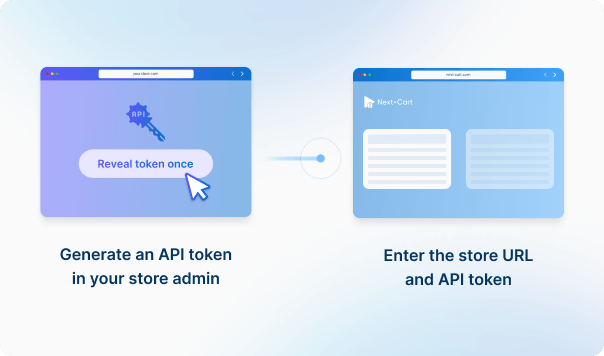
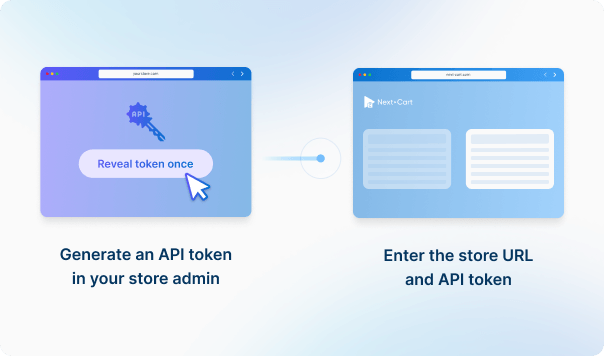
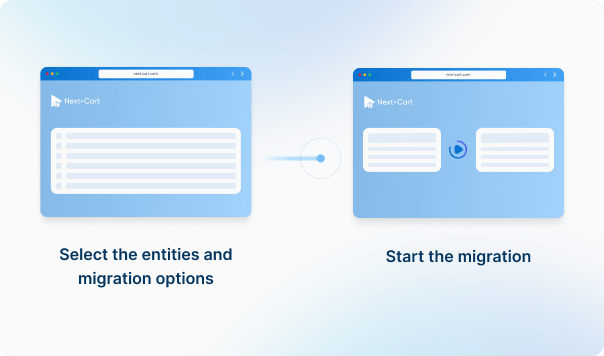
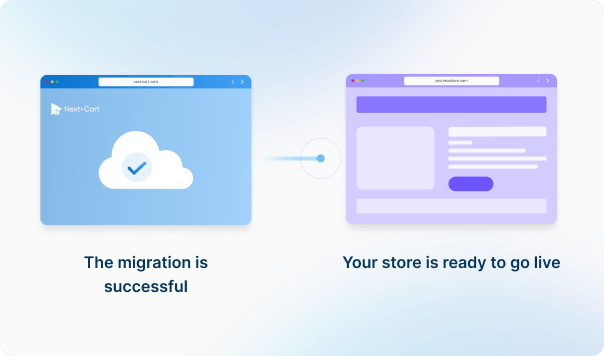


Enter your ShopWired store URL and API credentials to establish the connection.
Enter your 3DCart store URL to establish the connection.



 ShopWired3DCart
 ShopWired3DCart



Move your store from ShopWired to 3DCart with a secure, guided migration tailored to your business.
































































































Not sure which platform your store uses? Send us your store URL or tell us what you need to migrate.
Our team will help identify your platform and recommend a solution, including a custom-built migration tool if needed.
Talk to an Expert

Not sure which platform your store uses? Send us your store URL or tell us what you need to migrate.
Our team will help identify your platform and recommend a solution, including a custom-built migration tool if needed.
Talk to an Expert