

A Magento to WooCommerce migration changes how your store represents products, customer accounts and order history. A configurable product must become a usable variable product. Customer-group rules need a destination implementation. Old URLs must still take shoppers to the right pages.
WooCommerce can be a good fit for a business that wants to manage commerce alongside WordPress content. However, lower operating costs are not automatic: hosting, extensions, development and ongoing maintenance all affect the total. Start with the workflows your business needs, then decide how WooCommerce will support them.
This guide covers the data differences, preparation checklist, Next-Cart workflow and launch checks. It uses “Magento” as the familiar search term, while distinguishing Magento Open Source from Adobe Commerce where capabilities differ. Confirm the source edition, version and extensions before agreeing on migration scope.
Before You Migrate: Pre-Migration Checklist
Before you move Magento to WooCommerce, prepare the source evidence and destination setup together. Use Next-Cart’s WooCommerce pre-migration preparation checklist to turn these decisions into an assigned plan.
- Record the source scope: edition, version, websites, stores, store views, languages, currencies and relevant extensions.
- Create a recoverable backup of the source database, media, downloadable files and required configuration. Name the person responsible for restoration.
- List product types and custom behavior: configurable products, bundles, personalization, subscriptions, customer-group pricing and external inventory rules.
- Prepare WooCommerce: hosting, WordPress, required extensions, theme and the intended order-storage configuration.
- Choose representative test records: a complex product, a customer with several addresses, a guest order, a refunded order and an important old URL.
- Inventory integrations and notifications. Keep test imports from triggering unintended customer emails, fulfillment jobs or other live actions.
- Agree on final synchronization and launch responsibilities, including how new orders and changed stock will be handled before cutover.
Keep a mapping sheet with four fields: source value, WooCommerce destination, required extension or custom work, and acceptance check. If a required behavior has no destination owner, resolve it before the full transfer.
Understanding the Differences in Data Structure
Data mapping should preserve how records are used. A SKU needs the correct sellable product, an order needs its historical totals, and a customer-group label needs a defined purpose. Next-Cart’s guide to WooCommerce data model differences explains these relationships in more depth.
Products: map selling behavior, not just type names
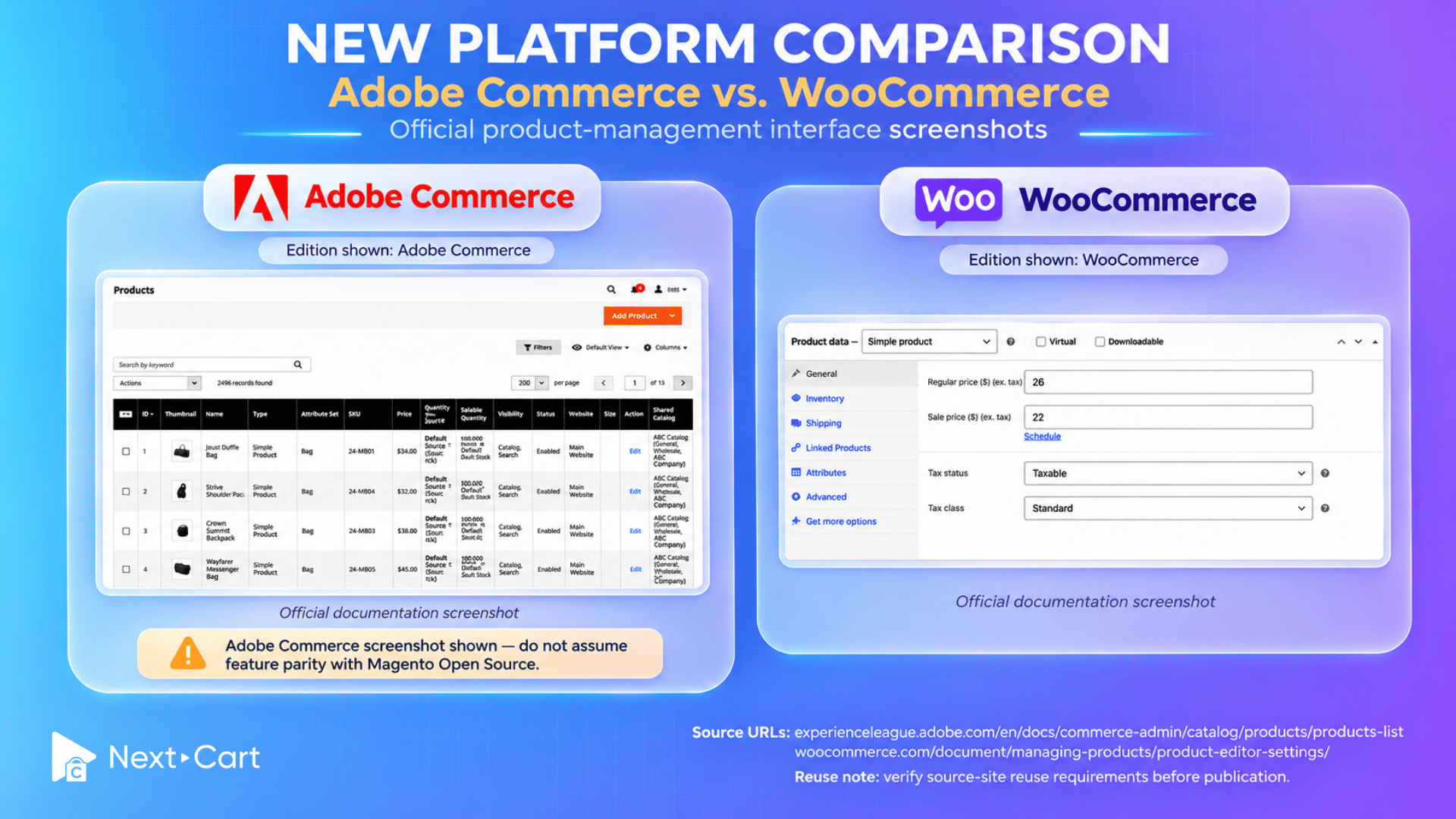
Adobe’s product-type documentation lists simple, configurable, grouped, bundle, virtual and downloadable products for Magento Open Source and Adobe Commerce. Edition-specific features can add other cases, so do not treat that list as the complete inventory of every installation.
WooCommerce’s product editor uses simple, grouped, external/affiliate and variable types. Virtual and downloadable are settings on supported products or variations, rather than direct copies of Magento’s product-type classification.
|
Magento source |
WooCommerce representation |
Acceptance check |
|---|---|---|
|
Simple product |
Simple product |
SKU, price, tax class, stock and images match. |
|
Configurable product + associated simple products |
Variable product + variations |
Child SKUs, attribute combinations and stock remain correctly linked. |
|
Grouped product |
Grouped product with linked items |
Each item remains independently purchasable as intended. |
|
Virtual product |
Supported product with Virtual enabled |
Shipping is not requested for the non-shippable item. |
|
Downloadable product |
Supported product or variation with Downloadable enabled |
Files, permissions and download access work; set Virtual if no shipping is needed. |
|
Bundle product / custom options |
Agreed extension or custom implementation |
Component choices, surcharges, stock and order details behave as required. |
Typical product representations to confirm during mapping.
A configurable Magento product associates separate simple products with their own SKUs. When you migrate products from Magento to WooCommerce, check the parent-to-variation relationship and where each SKU, price, image and stock quantity belongs.
For example, Trail Jacket may have a Navy / Medium child with SKU TJ-NV-M. The expected WooCommerce variation must retain that combination and its commercial values. This is an illustrative mapping example, not a reported client result.
Do not turn every custom option into a variation. A shopper’s engraving text, gift message or file upload has a different purpose from a stock-tracked size or color. Decide how an extension or custom implementation will capture the input, apply any surcharge and retain the selection on the order.
For bundles, test component selection, quantities, pricing and stock deduction. A grouped product can display separate products together, but that alone does not reproduce a configurable bundle’s rules.
Categories, attributes and navigation
Both platforms can organize products into parent and child categories. Even when the hierarchy transfers, review product assignments, slugs, menu links and breadcrumbs in the destination theme.
Keep categories separate from attributes. “Jackets” describes a browsing group; “Waterproof” might be a specification or filter; “Size” might generate variations. Choosing the same destination for all three makes the catalog harder to browse and maintain.
- Check that each important category contains the intended products.
- Test attributes used for filters separately from attributes used for variations.
- Rebuild theme-specific menus and landing-page layouts where needed.
- For multiple store views, confirm which content, language and category relationships belong in each destination.
Customers, saved addresses and customer groups
A customer profile is more than an email address. Decide how to retain account identity, historical orders, default billing and shipping details, extra addresses and custom fields that remain useful.
WooCommerce’s standard My Account page exposes billing and shipping addresses. A richer saved-address book requires a compatible extension or custom solution. Preserve addresses stored on historical orders separately; a customer’s latest address must not overwrite the address used for an earlier purchase.
Likewise, retaining a Magento customer-group name does not recreate its pricing, tax or access rules. Choose the destination behavior and test it with representative retail and business accounts. Adobe Commerce B2B features and extension-defined workflows need their own scope review.
Confirm password continuity for the exact source-to-target setup. Test login and password-reset behavior rather than promising that every existing account will work unchanged.
Orders: distinguish state, status and historical values
Magento has both order states and order statuses. Adobe’s order-status documentation explains that states control the processing workflow, while statuses provide labels associated with those states. A custom status label does not create a new workflow state.
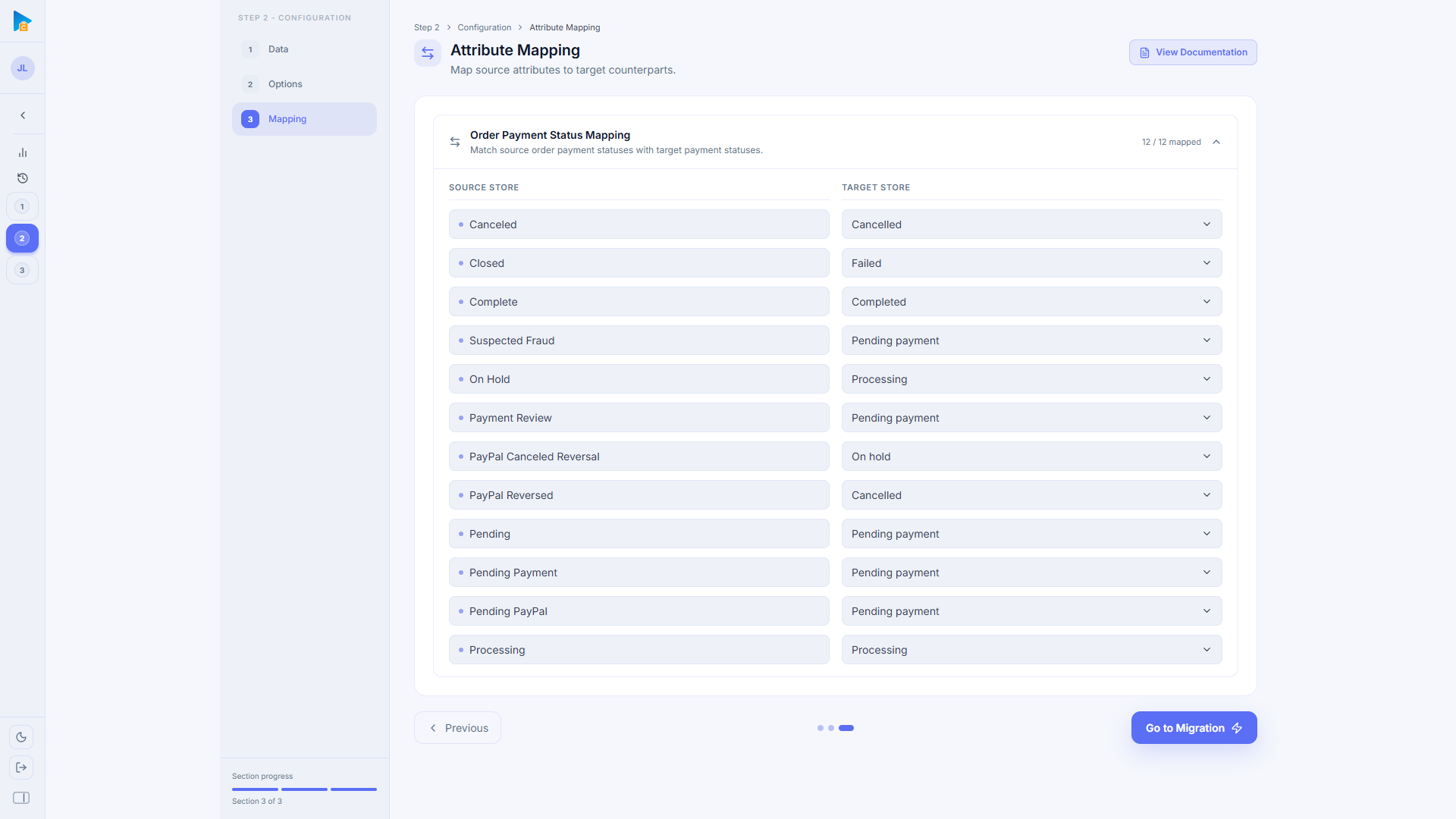
WooCommerce has its own order statuses, and extensions can add custom ones. Map the operational meaning, not only similar names. For a paid physical order still awaiting fulfillment, Processing may be appropriate; a fully fulfilled order may belong in Completed. Review payment and fulfillment evidence before applying either rule.
Treat partially refunded, canceled and partially shipped orders as separate test cases. Reconcile purchased item names, quantities, discounts, shipping, taxes, refunds and currency against the source. Do not recalculate old orders from today’s product prices or tax settings.
Also confirm WooCommerce’s High-Performance Order Storage (HPOS) configuration. HPOS uses dedicated order tables; extensions and custom code that read or write order data must support the chosen storage mode. Test important order metadata through the admin and the integrations that use it.
SEO and URLs: choose the destination structure first
WooCommerce product and taxonomy permalink bases are configurable in WordPress Settings → Permalinks. Paths such as /product/trail-jacket/ and /product-category/jackets/ are examples, not mandatory URL structures for every WooCommerce store.
Decide the target structure before preparing redirects. If your Magento product uses /trail-jacket.html and the destination uses /product/trail-jacket/, map the old path to that specific replacement. Keep category, content and localized URLs in the same planning exercise.
-
Preserve useful page titles, meta descriptions and on-page content through the chosen destination fields or SEO extension.
-
Implement required permanent redirects, then test old URLs for the correct destination, redirect loops and chains.
-
Update internal links to the final URLs and review canonical tags, sitemap entries and indexability.
Refer to Next-Cart’s URL Redirects plugin guidance when planning SEO URL handling. Confirm the redirect implementation required by your project and activate it before launch. Redirects reduce broken-link risk, but no migration can guarantee unchanged search rankings.
Blog posts, CMS pages and media
Identify where Magento blog content actually lives: an extension, a separate WordPress site or another system. That source determines the export and mapping required. A CMS page and a blog post should not be treated as interchangeable simply because both contain text.
For content moving into WordPress, check post or page type, categories, tags, publication details, images, alt text and internal links. Builder layouts, shortcodes, widgets and extension-specific content may need rebuilding even when the text transfers.
Migrating from Magento (Adobe Commerce) to WooCommerce with Next-Cart
The steps below describe a practical self-service sequence. For Adobe Commerce-specific features, legacy Magento installations or custom extensions, confirm coverage for the actual source before starting.
Review the supported entities and conditions for the Next-Cart Magento to WooCommerce Migration Tool. Listed data includes products, categories, customers, orders, reviews, coupons and content; extension data and advanced behavior still require a scope check.
Step 1: Connect your source and destination
In the migration setup, select Magento and WooCommerce. Use the current KitConnect package supplied for each store, extract it and upload it to the corresponding website location specified in the connection instructions. Enter the store URLs and verify both connections.
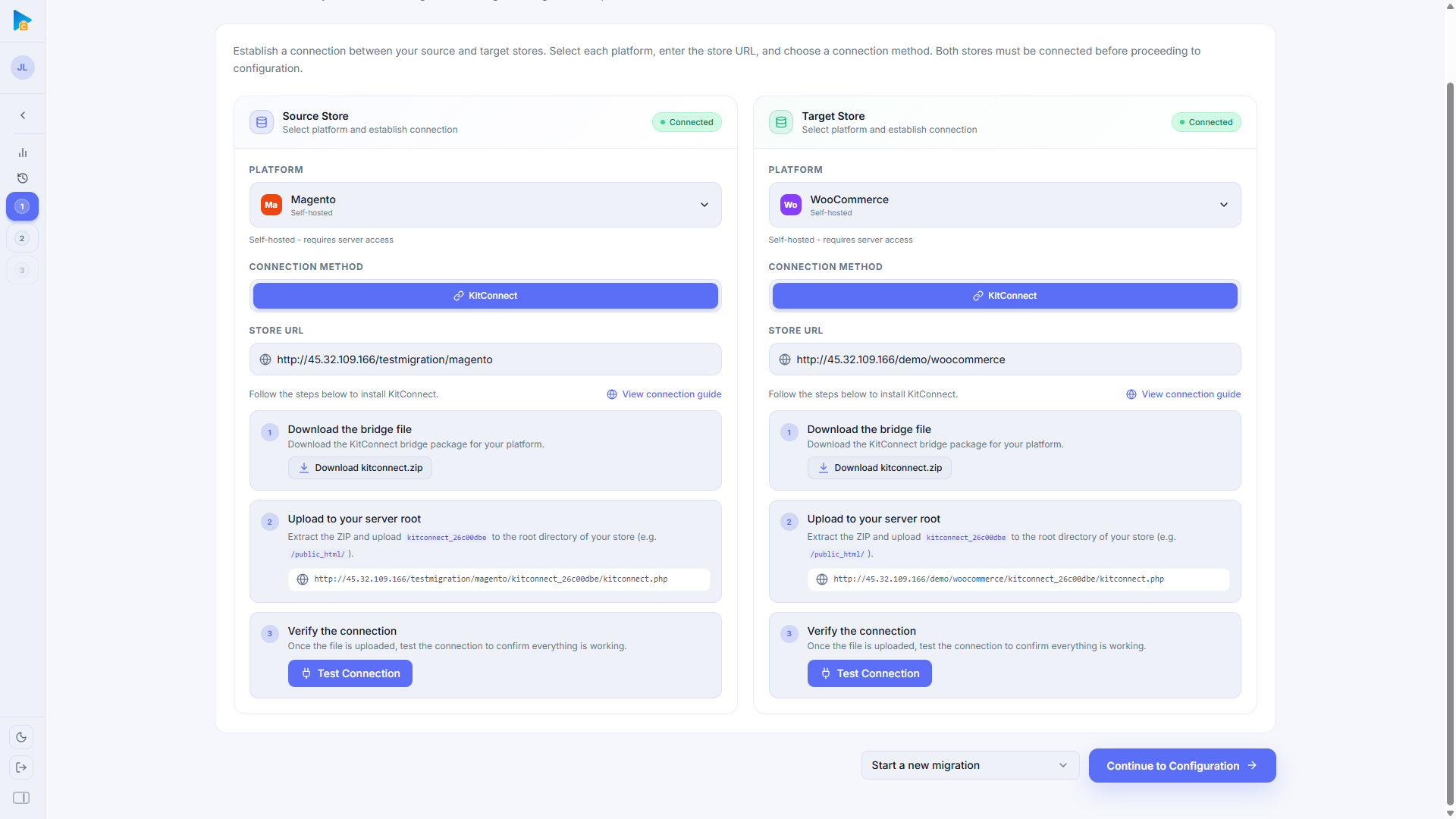
Have the administrator confirm the correct Magento and WordPress document roots before uploading. Keep connection details private and use the setup guidance shown for your project if its interface differs from older screenshots.
Step 2: Select data, options and mappings
Choose the entities in the agreed scope. Review the options actually available for this route, including SEO redirects, identifier preservation and recent-data handling where applicable. If the target already contains records, agree on duplicate and identifier-collision handling before importing.
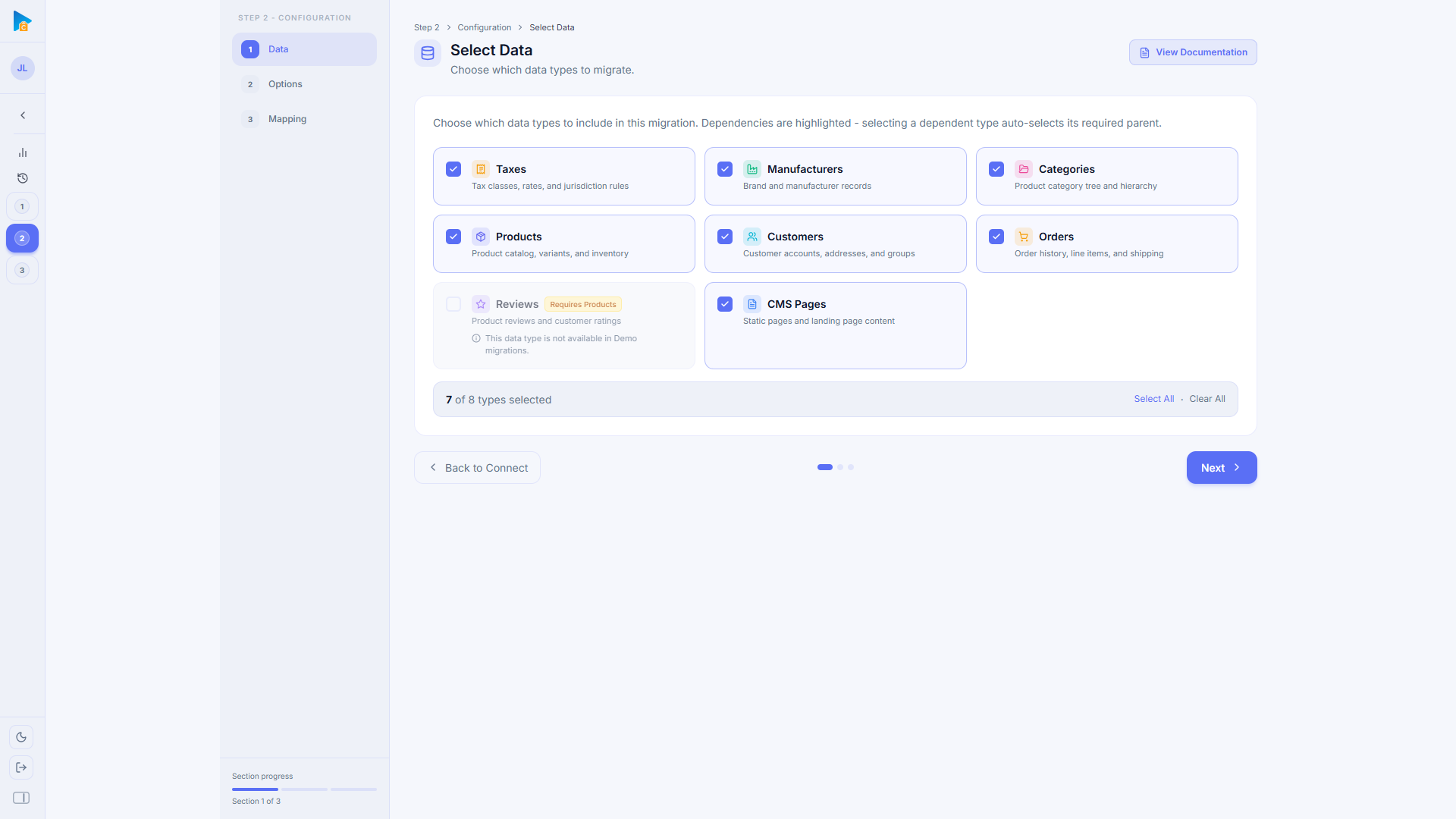
Use the mapping sheet to check order statuses, product attributes and any language mappings offered by the configured destination. Install and configure required extensions before testing the behaviors they are expected to support. Record expected results for custom fields and store-view content.
If preserving identifiers matters, distinguish database IDs from customer-facing order numbers. Check both against your integration and support requirements; a familiar displayed number does not prove that every internal reference stayed unchanged.
Step 3: Run a demo, validate it and complete the transfer
Run a demo before the full migration. Compare the sample with the expected results in your mapping sheet. If the sample omits a business-critical bundle, custom option or unusual order, arrange a targeted check before approving the full run.
After resolving the sample issues, start the full transfer and monitor its results. Review failed and skipped records individually. Processing time depends on data volume, images, product complexity, server resources and the work needed to resolve exceptions.
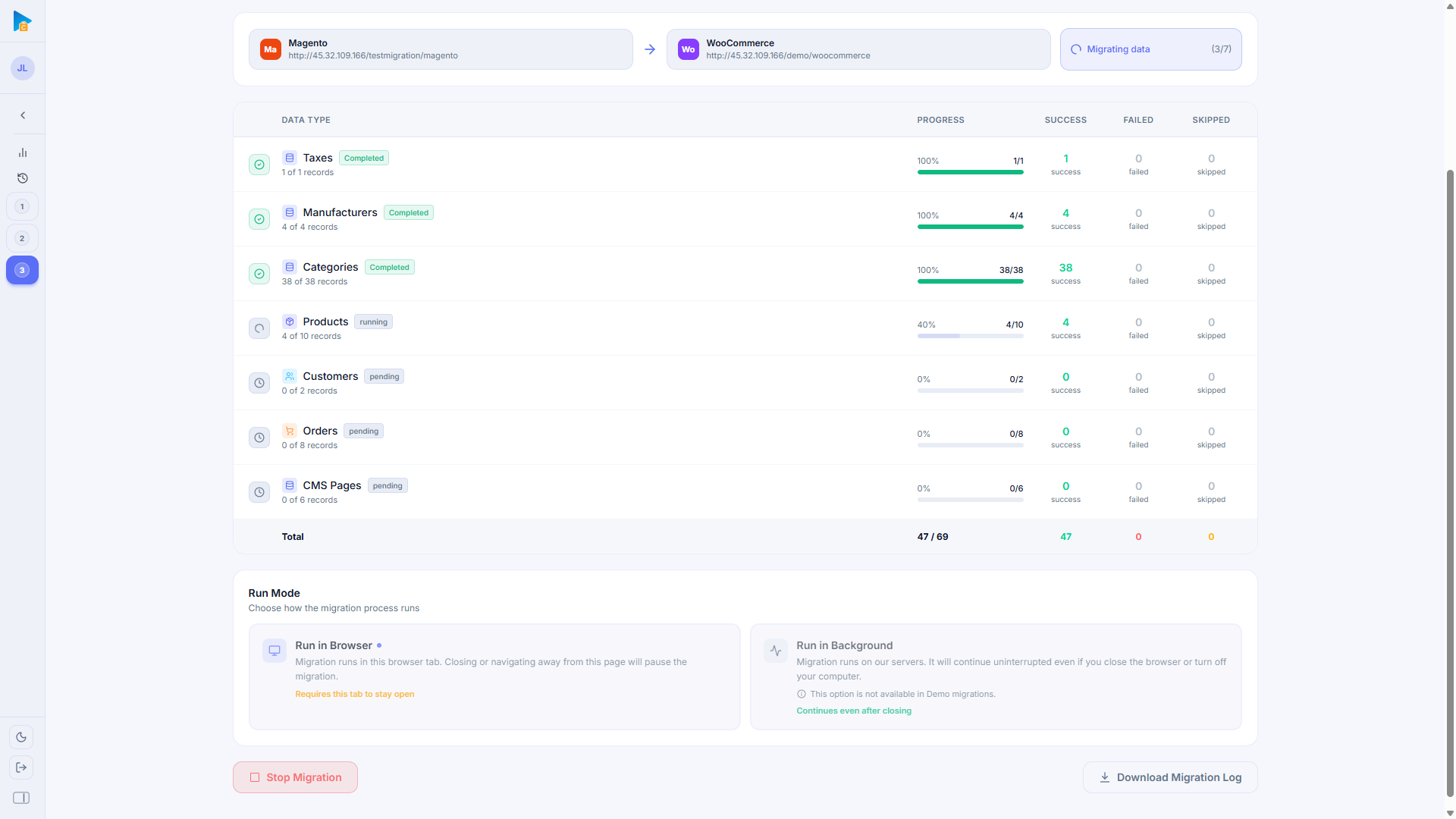
Before switching the storefront, reconcile activity since the initial transfer. Confirm which action covers newly created records and which covers changes to existing records. Plan the final stock and order check so the source and destination do not diverge at launch.
Post-Migration Adjustments: Prove the Store Is Ready
A successful import and a working storefront are different acceptance points. Use Next-Cart’s WooCommerce validation priorities to review both record relationships and the customer journey.
Validate the data that customers and staff rely on
- Products: Select variations and compare SKU, price, image, availability and stock behavior.
- Customers: Check login, default addresses, order-history access and any agreed group-based behavior.
- Orders: Compare source and destination references, item quantities, totals, currency, statuses and refund details.
- Downloads and content: Test file access, media, page formatting and internal links.
- SEO: Test important old URLs and confirm the final pages are accessible and indexable.
Configure checkout and operational integrations
Set up payment gateways, shipping methods, tax configuration and customer emails for the destination business requirements. Place controlled test orders and follow them through the fulfillment or integration workflow. Confirm that migrated historical orders do not trigger unintended new operational actions.
Rebuild the storefront theme, menus and any extension-dependent features. Check product selection, cart, checkout and account pages on mobile as well as desktop. Migration of records does not recreate Magento themes or extension code.
Check performance and prepare the cutover
Measure representative product, category, cart and checkout pages on the chosen hosting setup. Optimize images and review slow extensions or queries. Test caching carefully so it does not serve another shopper’s cart or account content.
Assign owners for domain switching, final synchronization, payment and fulfillment checks, analytics and post-launch errors. Keep source evidence available for reconciliation and document the rollback plan before the switch.
Video Tutorial
This video tutorial will help you better understand the data migration process.
[lyte id='iuJ4tPgSW44' stepSize='+2' /]
Final Thoughts
Migrating from Magento to WooCommerce opens the door to a cost-effective and highly customizable eCommerce platform. While the transition might seem overwhelming, the Next-Cart Migration Tool simplifies the process, preserving your store’s critical data and SEO performance.
Ready to make the switch? Explore Next-Cart’s Magento to WooCommerce Migration Service and discover how easy it is to transform your online business with WooCommerce!