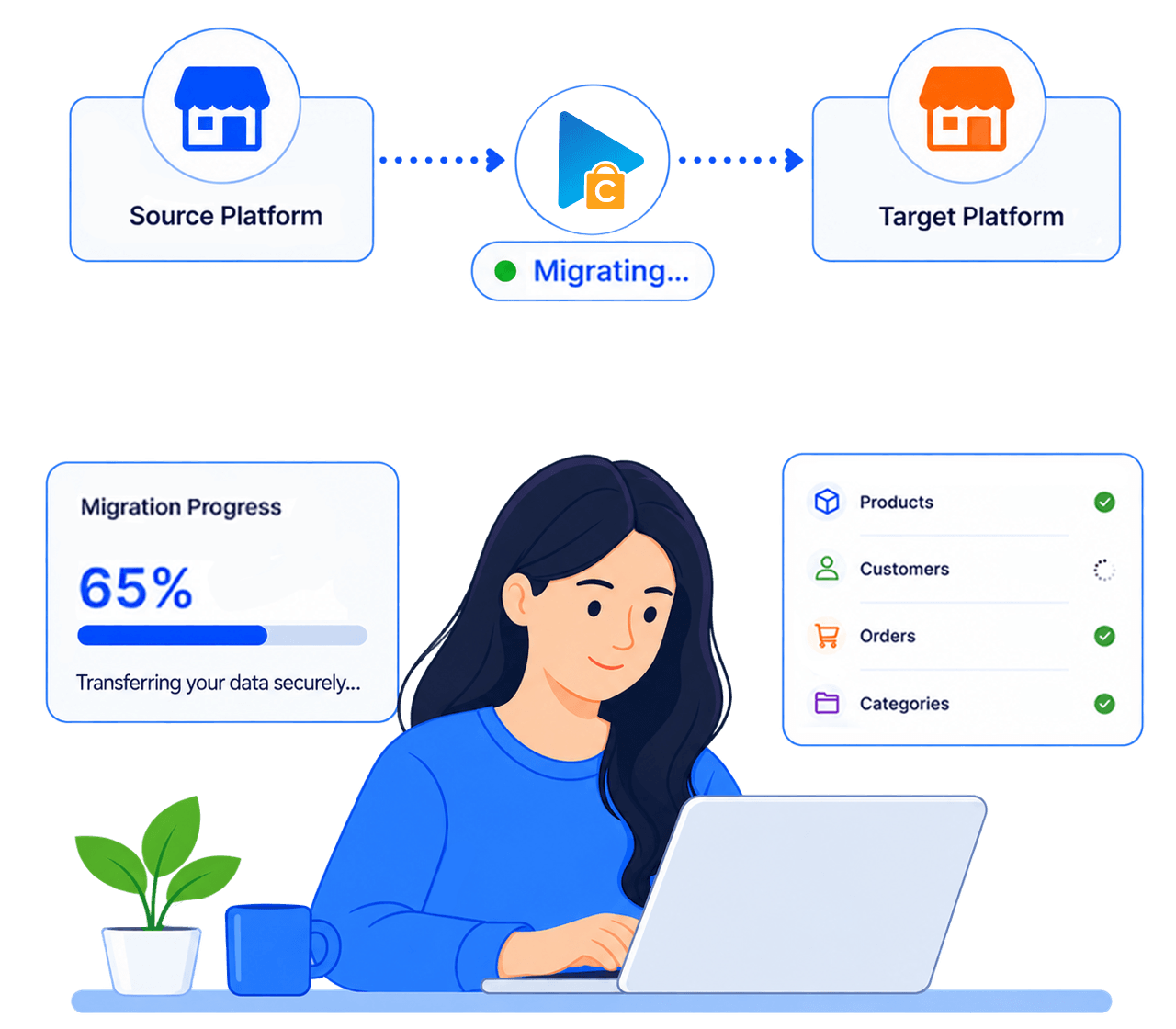

This case study explores how Next-Cart handled a sophisticated Magento (1)-to-WooCommerce migration. The client was Gijs van Woerdekom, founder of Woerdekom Webdesign in the ...

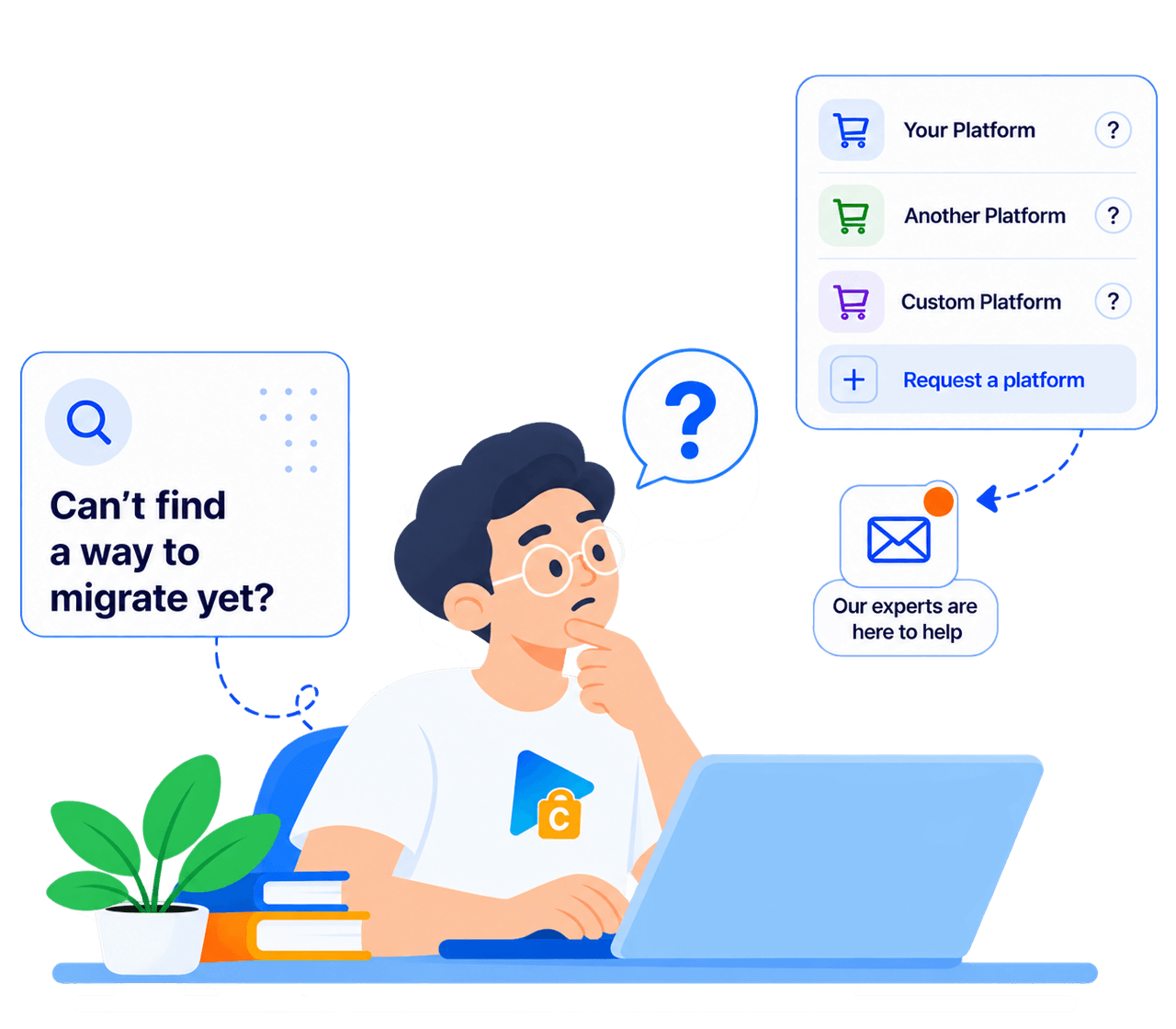
Not sure which platform your store uses? Send us your store URL or tell us what you need to migrate.
Our team will help identify your platform and recommend a solution, including a custom-built migration tool if needed.
Talk to an Expert







Find your current platform in the source list and your destination in the target list, then open the page for that migration path. A platform may support only one direction. The services, data, and options available can differ by path, platform version, and store setup.
Contact our team with your store URL and the destination you have in mind. We can help identify your platform and assess possible migration options. If existing tools are not suitable, we will review whether a custom solution can be developed and confirm its scope and cost with you.
Open the supported data and migration details for your source–target pair. These explain the available data types, fields, mappings, and relevant conditions. Support can vary with platform versions, apps, and target limitations. Contact us before purchasing if a field or relationship important to your store is not listed.
Yes. You can choose the supported data types to migrate. Selecting particular records within a data type may require a supported filter, a paid add-on, or custom work. The quantities entered in the pricing calculator estimate capacity; they do not select or filter the records to be migrated.
In many cases, yes. Some requirements are already covered by the supported migration or available add-ons. Others need Custom Migration. Send us details about the fields, apps, or plugins involved and the result you need; we will check feasibility and explain any additional work and cost before you proceed.
Use the free self-service demo for a supported path to check a limited sample in the destination. Reviews, coupons, paid add-ons, and custom work are excluded. The demo is optional and does not verify every record or feature. For requirements outside its scope, contact our team to discuss a suitable test.
Choose Standard Migration to use the tool yourself with technical support, Managed Migration to have our technicians carry out the migration, or Custom Migration for requirements beyond the supported tools and options. With Custom Migration, you can run the migration yourself or include expert handling. Available services depend on your migration path.
Yes. Your source store can keep operating while its data is copied to the destination. The transfer does not delete or modify source data. Plan the final switch to your new store separately, including any additional transfer of supported data created or updated during the migration.
Yes. While your license is valid, you can run further migrations for the same purchased migration, including supported new or updated data. Choose the appropriate continuation or rerun option and check its effect on existing destination data. Previously counted records do not consume points again; new counted records require remaining capacity. This is not continuous automatic synchronization.




























































































Not sure which platform your store uses? Send us your store URL or tell us what you need to migrate.
Our team will help identify your platform and recommend a solution, including a custom-built migration tool if needed.
Talk to an Expert

Not sure which platform your store uses? Send us your store URL or tell us what you need to migrate.
Our team will help identify your platform and recommend a solution, including a custom-built migration tool if needed.
Talk to an Expert